



Self-Host Actual Budget: Budgeting App with Docker and Caddy
Install and use Actual Budget on your own server: Docker, HTTPS with Caddy, accounts, envelope budgeting, reports, rules and import, step by step.
Contents
Actual Budget 26.11.0Caddy 2.11Docker 29.9Ubuntu 26.04Actual Budget is a free, open-source app for your personal budget. You enter income and expenses, assign your money to categories, and always see what you can still spend this month. The app runs on your own server, so your financial data stays with you.
In this post I install Actual Budget with Docker, secure it with HTTPS through Caddy, and then walk through the most important features. The screenshots show the German interface; the menu names in the text are the English ones.
What is Actual Budget?
Actual Budget is a local-first app: your budget lives as a full copy in your browser and also on your server. Changes sync to the server in the background, and the app stays fast even on a weak connection.
The concept behind it is envelope budgeting: you assign every euro you earn to a category, for example groceries, rent or savings. Expenses are deducted from that category. When an “envelope” is empty, the money for that category is gone, and you decide deliberately whether to move money over from another category.
Here is what Actual Budget can do:
- Manage multiple accounts, including accounts outside your budget such as an investment account or a house.
- Enter transactions by hand or import them from bank files.
- Create rules that categorize transactions automatically.
- Manage recurring payments as schedules.
- Build reports covering net worth, cash flow and spending by category.
- Stay in sync across several devices, optionally with end-to-end encryption.
Prerequisites
- A server: I use a small VPS from Hetzner running Ubuntu 26.04. Actual Budget needs few resources, so a small server is enough.
- A domain: it must point to your server’s IP address with an A record, for example
{{domain}}. I explain below why you need HTTPS. - Open ports: ports 80 and 443 must be reachable so Caddy can get its certificate.
Install Docker
Connect to the server over SSH and install Docker with the official script:
curl -fsSL https://get.docker.com | sudo shThen check the installation:
docker --versionStart Actual Budget with Docker Compose
Create a directory for Actual Budget:
mkdir ~/actual
cd ~/actual
Create the compose.yaml:
nano compose.yamlservices:
actual_server:
image: actualbudget/actual-server:latest
container_name: actual_server
restart: unless-stopped
volumes:
- ./data:/data
caddy:
image: caddy:2
container_name: caddy
restart: unless-stopped
ports:
- "80:80"
- "443:443"
volumes:
- ./Caddyfile:/etc/caddy/Caddyfile
- caddy_data:/data
- caddy_config:/config
volumes:
caddy_data:
caddy_config:The ./data folder holds your entire budget. The Actual container does not publish a port of its own. You reach it only through Caddy.
Create the Caddyfile:
nano Caddyfile{{domain}} {
reverse_proxy actual_server:5006
}On first start, Caddy automatically requests a certificate from Let’s Encrypt. Start both containers:
sudo docker compose up -dRun sudo docker compose ps to check that both containers are running. You can see whether the certificate worked in the Caddy logs:
sudo docker compose logs caddy | grep "certificate obtained"Why Actual Budget needs HTTPS
If you open Actual Budget over a plain IP address with http://, the app does not start. This message appears instead:
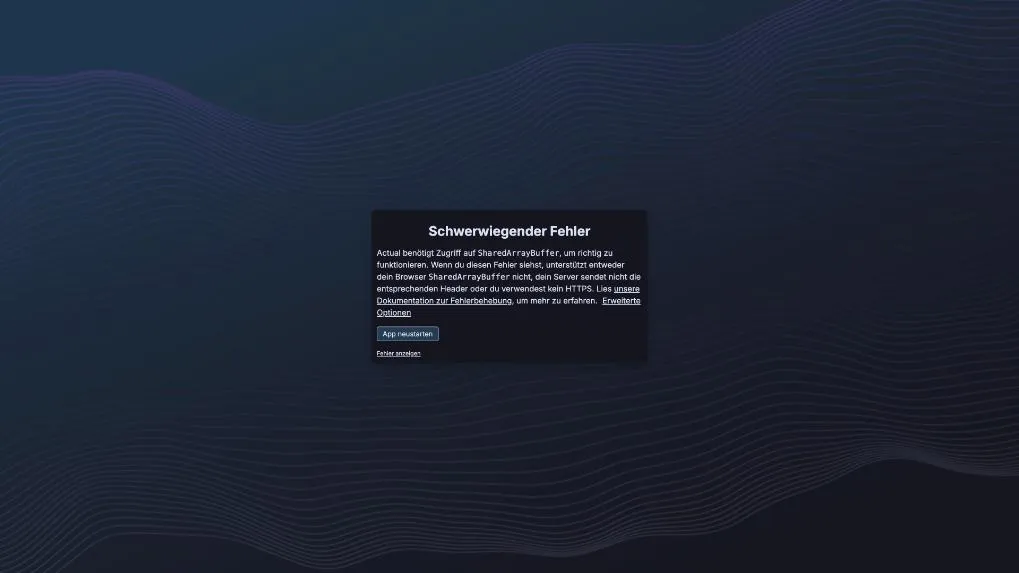
Actual needs SharedArrayBuffer, and browsers only provide that feature in a secure context, meaning HTTPS or localhost. That is why Caddy is already part of the compose.yaml. Open your domain with https:// and the app works.
Set the server password
Open https://{{domain}} in your browser. On the first visit, Actual asks for a password for your server. Choose a strong password and confirm it. After that, you log in with this password.
On the start page you choose “Start budgeting”. “Try the demo” loads a sample budget with data. The demo budget lives only in your browser and is not synced to the server. It is handy for trying out the reports, but for your real finances you create a new file.
In the file list, click “Create new file”:
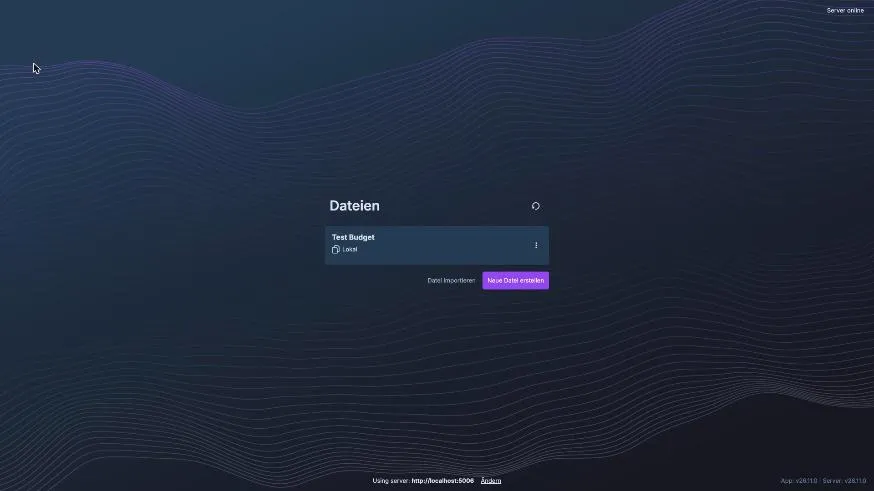
Actual creates an empty budget with default categories. You can rename, delete or add categories later.
Create your first account
Click “Add account” at the bottom left of the sidebar.
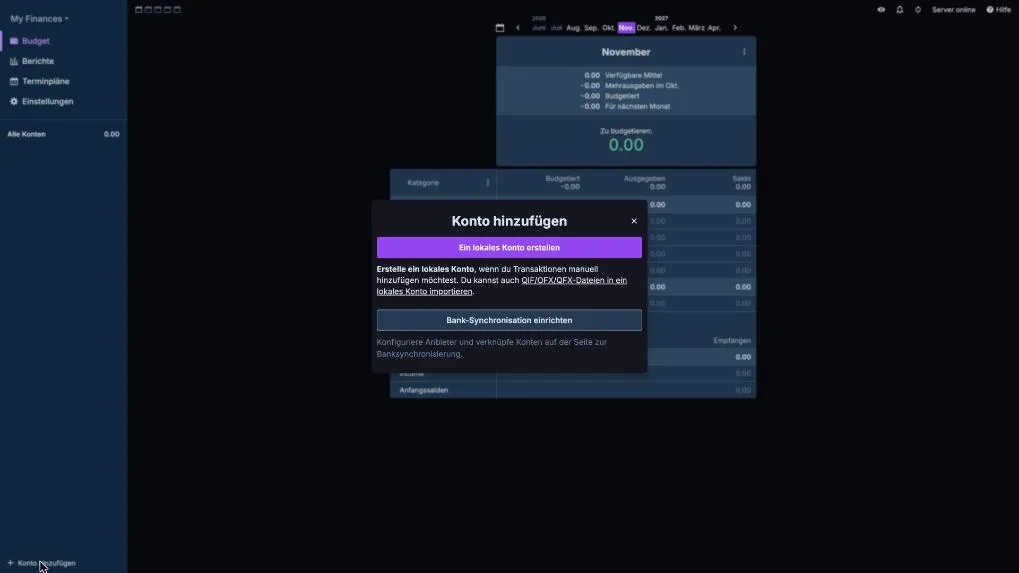
You have two options here:
- Create a local account: You enter transactions yourself or import files from your bank.
- Set up bank sync: Actual can connect accounts through external providers. This requires an account with the provider and is not equally well supported in every country.
I start with the local account. Enter a name, type in the current balance and click “Create”.
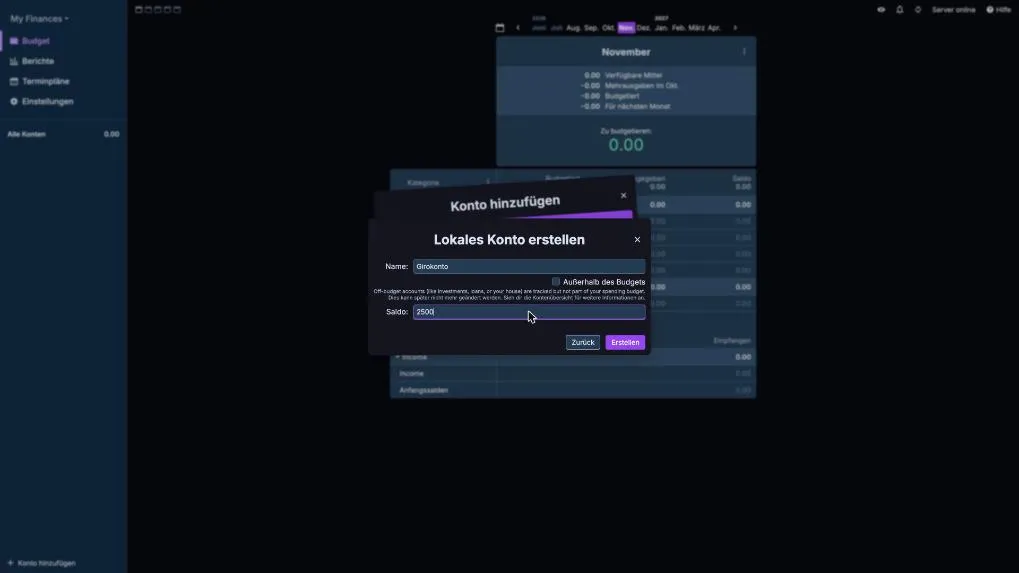
You need the “Off budget” option for accounts that are not part of your spending budget, such as an investment account or a house. They count toward your net worth, but not toward the money you can assign. You cannot change this later.
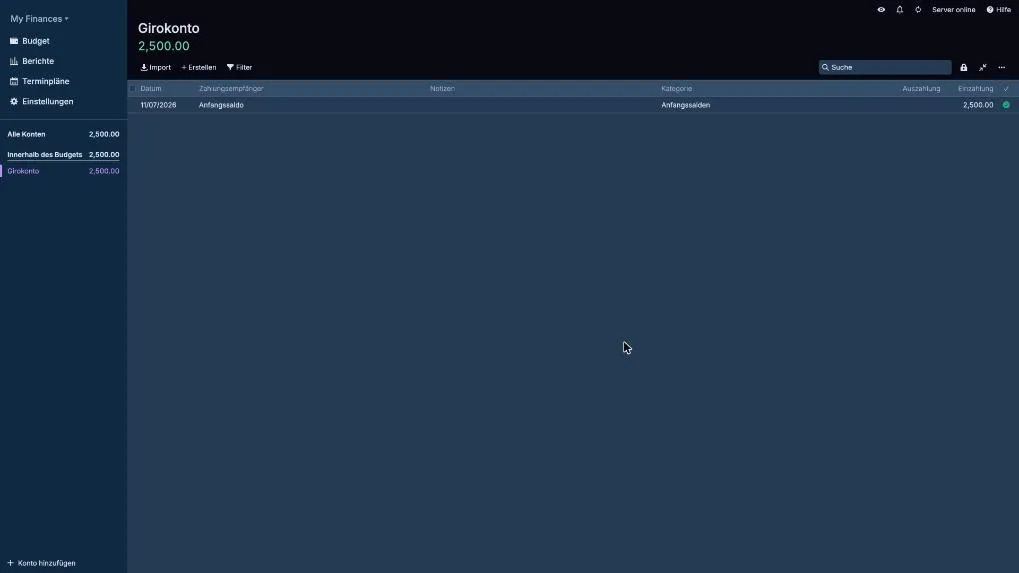
The balance shows up as the first transaction, “Starting Balance”, in the “Starting Balances” category:
Enter transactions
In the account, click “Add New” at the top. A new row appears. The Tab key moves you from field to field: date, payee, notes, category, payment or deposit. Actual creates new payees as you type. Save the transaction with “Add” or the Enter key.
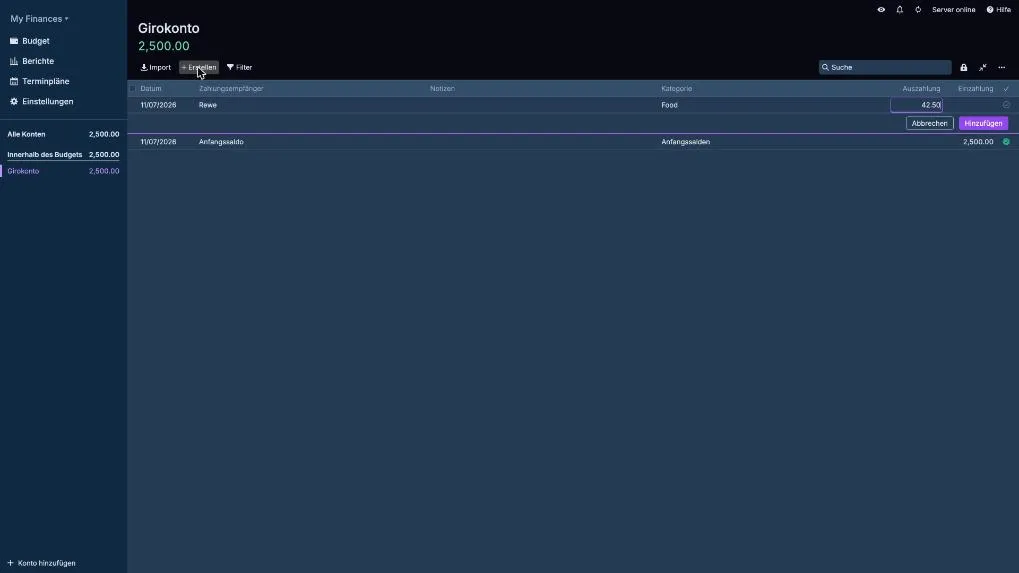
The balance drops immediately, and the expense lands in the “Food” category. If one purchase covers several categories, split the transaction and give each part its own category.
Assign money to categories
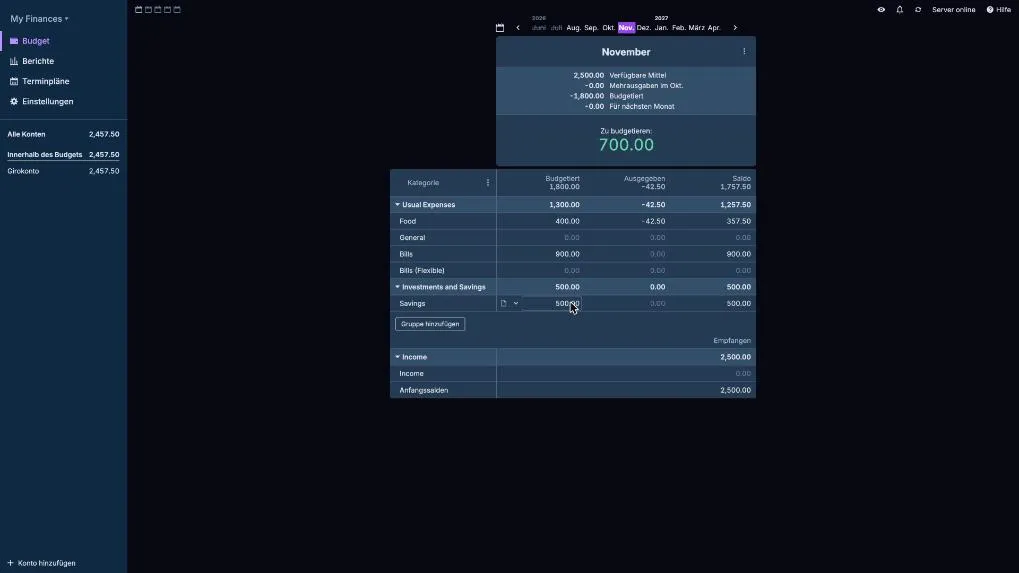
Now comes the core of Actual Budget. On the “Budget” page you see the “To Budget” amount at the top. That is money you have received but not yet assigned to a category.
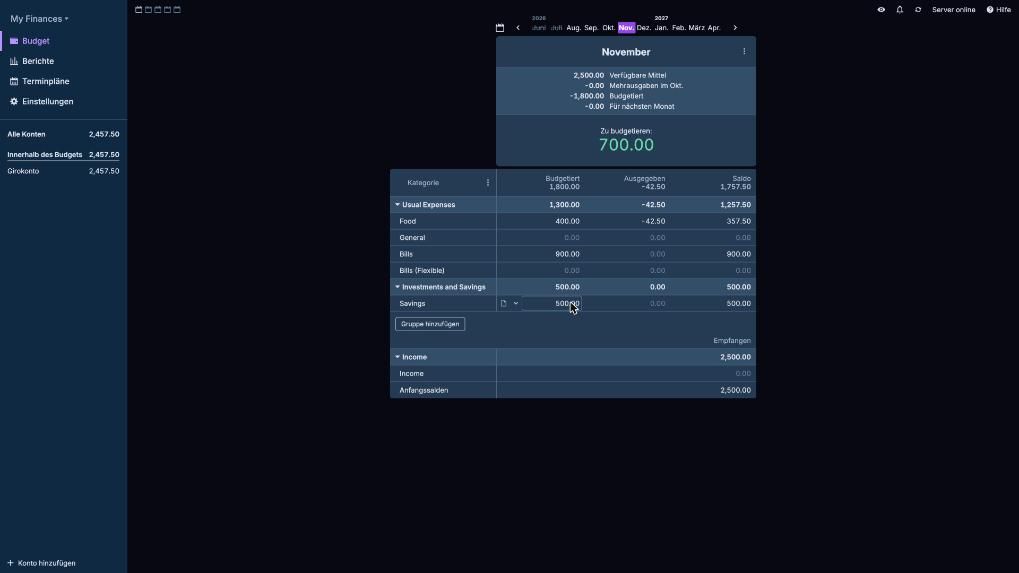
In the “Budgeted” column, click the cell of a category and enter an amount. I assigned 400 to groceries, 900 to bills and 500 to savings:
The columns mean:
- Budgeted: What you assigned to this category this month.
- Spent: What you actually spent.
- Balance: What is left in the category. Red values show overspending.
The goal is for “To Budget” to reach 0. Then every euro has a purpose. Amounts left over in a category carry over to the next month. If you overspend, click the red balance and move money over from another category.
Reports
Under “Reports” you find a dashboard with widgets: income and expenses over the year, net worth, cash flow, a comparison with the previous month and a transaction calendar. Use “Add new widget” and “Edit dashboard” to rearrange it.
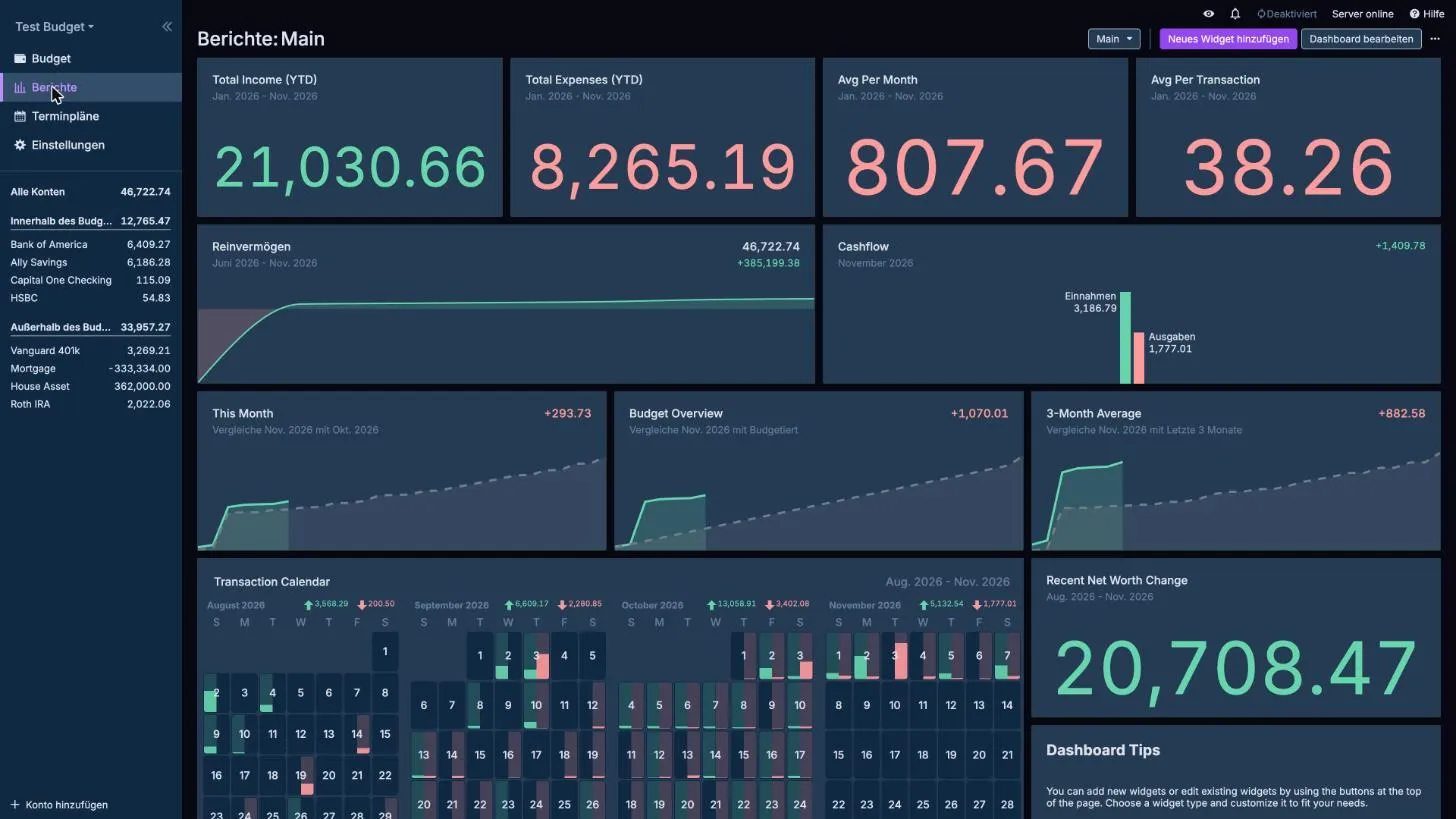
The screenshot comes from the demo budget, because my fresh budget has no data yet.
Schedules for recurring payments
You do not want to book rent, internet or insurance by hand every month. Under “Schedules” you set them up once. Actual then shows whether a payment is upcoming, due or missed, and posts it automatically if you want.
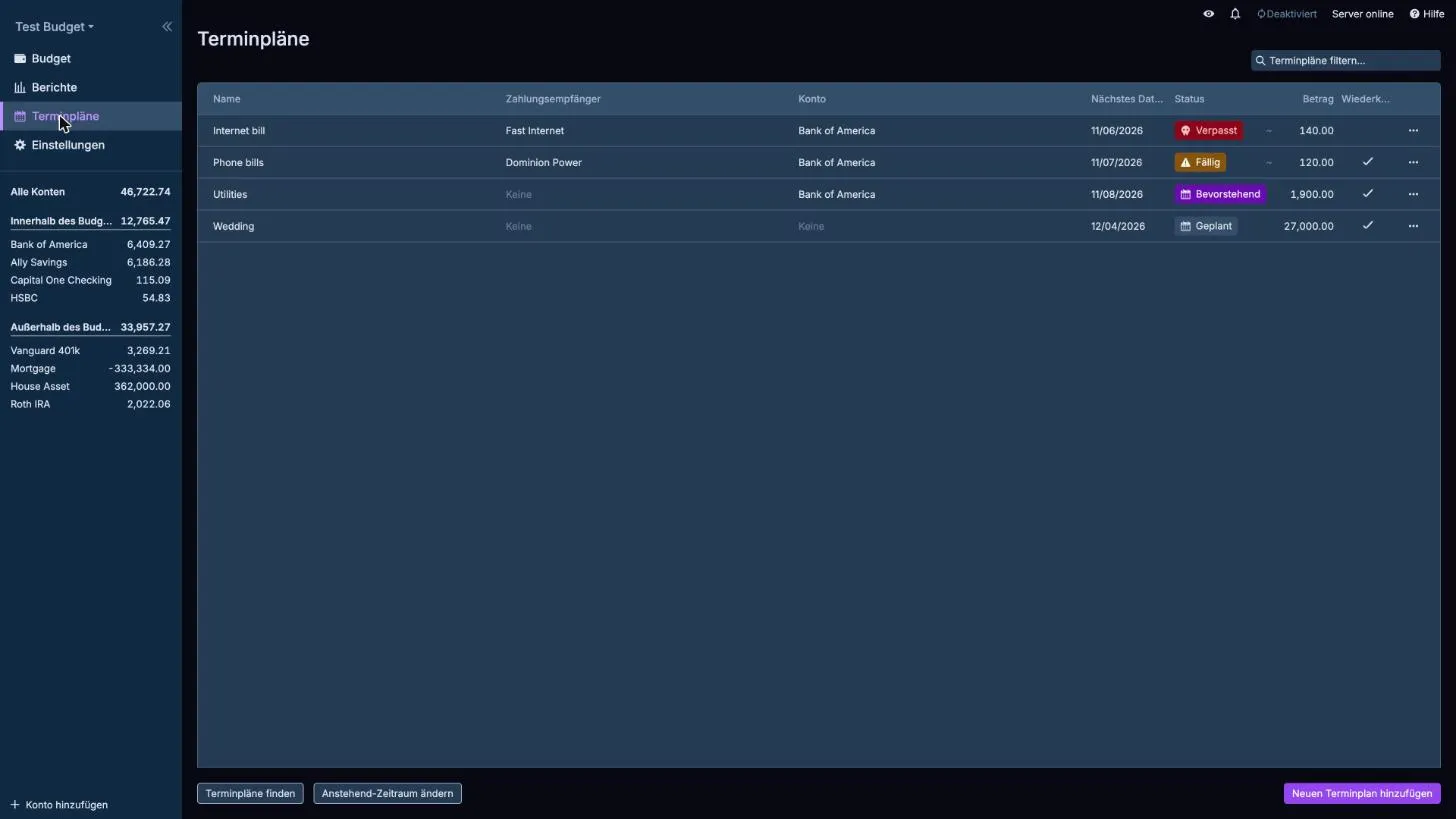
With “Add new schedule” you set the name, payee, account, amount and recurrence.
Rules for automatic categorization
Under “Settings” -> “Rules” you define what Actual should do automatically with new transactions, for example always assign a payee to a category. That saves a lot of manual work when you import bank data.
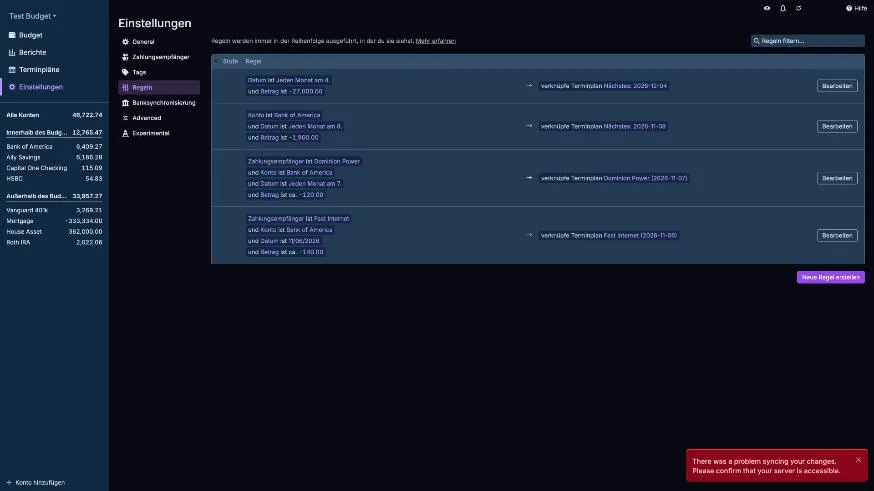
A rule consists of conditions (“if the payee is Rewe”) and actions (“set the category to Food”). Schedules also create rules of their own, which you see in the list.
Import transactions
In the account, click “Import”. Actual reads files in these formats:
- OFX/QFX: The best choice if your bank offers it. The files contain unique IDs, so Actual detects duplicates reliably.
- QIF
- CSV: You map the columns of the file to date, payee, amount and so on, and check the date format in the preview.
- CAMT
If you import transactions twice, Actual looks for entries with a similar date, the same amount and a similar payee, and merges them.
Optional: end-to-end encryption
Under “Settings” you can enable encryption for sync. Your budget is then encrypted on the device with a key derived from your password before it reaches the server. The server cannot read the contents.
Keep two things in mind: once enabled, encryption cannot be switched off again, unless you restore your budget from a backup into an unencrypted file. And without your password and without a local copy, the data cannot be recovered.
Backup
Actual stores everything in the data folder. Back it up regularly, ideally to another machine:
cd ~
sudo tar czf actual-backup.tar.gz actual/data
You can also back up directly in the app: “Settings” -> “Export data”. You get a file that you can import again into a new installation.
Update Actual Budget
cd ~/actual
sudo docker compose pull
sudo docker compose up -d
The data in the data folder stays intact. You can see the current version under “Settings” -> “General”.
Who is Actual Budget for, and what speaks against it?
Actual Budget fits if you want to plan deliberately what your money is for and do not want to store your data with a cloud provider. Envelope budgeting forces you to assign money actively.
A few points to know:
- Envelope budgeting takes getting used to. If you only want to analyze spending, a simple spreadsheet is faster.
- With self-hosting, you are responsible for updates and backups.
- Bank sync runs through external providers and is not available for every bank. File import, on the other hand, always works.
Firefly III is an alternative. It leans more toward bookkeeping and also runs on your own server.
Conclusion
With Docker and Caddy, Actual Budget runs on your server within minutes. Envelope budgeting takes some getting used to, but afterwards you see at a glance how much money is left for which purpose. Enter income and expenses, assign money, look at the reports: that is all you need to start. Rules, schedules and import come in when you need them.
Do you already use a budgeting tool, and which feature is missing there? Let me know in the comments.
FAQ
Frequently asked questions
Is Actual Budget free?
Yes. Actual Budget is open source and free. For self-hosting you only pay for the server.
Is Actual Budget secure?
Your data sits on your own server. The connection is encrypted over HTTPS, and you can optionally add end-to-end encryption for your budget. You have to keep the server updated and backed up yourself.
Why does Actual Budget not start and show a SharedArrayBuffer error?
You are probably accessing an IP address over HTTP. Actual needs a secure context. Set up a reverse proxy such as Caddy with a domain and open the app over HTTPS. Only localhost works without HTTPS.
Where does Actual Budget store my data?
On the server, in the folder you mounted to /data in the compose.yaml, here ./data. In addition, every device on which you open the app keeps a local copy.
Can I connect Actual Budget to my bank?
Yes, through providers such as SimpleFIN, GoCardless or Pluggy.ai. Which provider works for your bank depends on the country. Alternatively, you import files in OFX, QFX, QIF, CSV or CAMT format.
What is envelope budgeting?
You assign every euro you earn to a category, the so-called envelope. Expenses are deducted from the envelope. When it is empty, the money for that category is gone.
How do I update Actual Budget?
In the folder with the compose.yaml, run sudo docker compose pull and then sudo docker compose up -d. Your data stays intact.
How do I back up my budget?
Regularly copy the data folder to another machine, and also export your data in the app under Settings with Export data.