



Install Karakeep: Self-Hosted Bookmark Manager with Docker
Install Karakeep as your self-hosted bookmark manager with Docker. Includes Caddy reverse proxy and optional AI integration – full control over your bookmarks!

Contents
Karakeep 0.34.1Meilisearch 1.55Caddy 2.11Docker 29.9Ubuntu 24.04In this blog post, we’ll take a closer look at Karakeep. Karakeep is a promising bookmark app that aims to enable bookmarking for everything. Whether it’s websites, notes, images, or even RSS feeds – Karakeep aims to become your central hub.
We will install Karakeep together on a server, secure it for external access, and even explore some of its optional AI features.
What is Karakeep?
Karakeep is an open-source bookmark manager designed to store more than just URLs. You can:
- Save and archive websites (Full Page Archive).
- Add notes and images.
- Have tags automatically assigned by AI.
- Have content summarized by AI.
- Subscribe to and read RSS feeds.
- Import bookmarks from browsers or other services.
- Quickly add content via browser extensions and mobile apps.
Since it’s a self-hosted application, you retain full control over your data.
Glossary: Important Terms and Technologies
| Term | Description |
|---|---|
| Karakeep | The open-source bookmark management software we are installing. |
| Server | A computer that provides services. Can be a home server (e.g., a Raspberry Pi or old PC) or a Virtual Private Server (VPS). |
| VPS | Virtual Private Server; a rented virtual server from a hosting provider. |
| Docker | A platform for creating, deploying, and running applications in containers. |
| Docker Compose | A tool for defining and running multi-container Docker applications. Configuration is done via a compose.yaml file. |
| Image | A template with instructions for creating a Docker container. |
| Container | A running instance of a Docker image. |
| Bind Mount | Links a directory on the host system with a directory in the container to store persistent data. |
| .env File | A file for storing environment variables. |
| Reverse Proxy | A server that receives requests from the internet and forwards them to the appropriate internal service (here, Karakeep). |
| Caddy | A modern, easy-to-configure web server and reverse proxy that automatically manages HTTPS certificates. |
| API Key | A unique code used for authentication and authorization when accessing an API (Application Programming Interface). |
| OCR | Optical Character Recognition; text recognition in images. |
| OpenRouter | A service that provides access to various AI models via a unified API. |
Prerequisites
Before we start, make sure you have the following:
- A Server: This can be a home server or a public VPS. For this guide, I’m using a VPS from Hetzner (Affiliate link: As a new customer, you’ll receive a €20 starting credit with this link). The server should be running a Linux operating system (e.g., Ubuntu).
- (Optional, but recommended) A Domain: If you want to access Karakeep securely and easily over the internet, a domain pointing to your server’s IP address is very useful.
Installing Karakeep with Docker Compose
Installing Karakeep is relatively straightforward thanks to Docker Compose. Karakeep is under active development, so it is worth checking the official Karakeep documentation in case details change.
0. Install Docker and Docker Compose
First, we connect to our server via SSH and ensure Docker is installed. If not, Docker and Docker Compose need to be installed. It’s best to follow the official documentation.
For Ubuntu, execute the following:
# Add Docker's official GPG key:
sudo apt-get update
sudo apt-get install ca-certificates curl
sudo install -m 0755 -d /etc/apt/keyrings
sudo curl -fsSL https://download.docker.com/linux/ubuntu/gpg -o /etc/apt/keyrings/docker.asc
sudo chmod a+r /etc/apt/keyrings/docker.asc

# Add the repository to Apt sources:
echo \
  "deb [arch=$(dpkg --print-architecture) signed-by=/etc/apt/keyrings/docker.asc] https://download.docker.com/linux/ubuntu \
  $(. /etc/os-release && echo "${UBUNTU_CODENAME:-$VERSION_CODENAME}") stable" | \
  sudo tee /etc/apt/sources.list.d/docker.list > /dev/null
sudo apt-get update
And then:
sudo apt-get install docker-ce docker-ce-cli containerd.io docker-buildx-plugin docker-compose-plugin1. Create a Directory and compose.yaml File
We create a directory for Karakeep.
mkdir karakeep
cd karakeep
Next, we create the compose.yaml file. This file describes how our Karakeep application should be started with Docker.
nano compose.yamlCopy the following content into the file:
services:
    web:
        image: ghcr.io/karakeep-app/karakeep:${KARAKEEP_VERSION}
        container_name: karakeep_web # Needed later for the reverse proxy
        restart: unless-stopped
        ports:
            - "{{port}}:3000" # Host port:container port (can be adjusted)
        env_file:
            - .env
        environment:
            MEILI_ADDR: http://meilisearch:7700
            BROWSER_WEB_URL: http://chrome:9222
        volumes:
            - ./data:/data # Bind mount for Karakeep data
        depends_on:
            - chrome
            - meilisearch
        networks:
            - internal

    chrome:
        image: ghcr.io/karakeep-app/karakeep-chrome:release
        restart: unless-stopped
        init: true
        command:
            - --disable-gpu
            - --disable-dev-shm-usage
            - --hide-scrollbars
            - --disable-blink-features=AutomationControlled
            - --window-size=1440,900
        networks:
            - internal

    meilisearch:
        image: getmeili/meilisearch:v1.55.0
        restart: unless-stopped
        env_file:
            - .env
        environment:
            MEILI_NO_ANALYTICS: "true"
        volumes:
            - ./meilisearch_data:/meili_data
        networks:
            - internal

networks:
    internal:
        external: false
Important notes on compose.yaml:
- Image version: The Karakeep version is not in this file but in the
.env(KARAKEEP_VERSION). Thekarakeep-chromeimage only exists with the tagrelease, and the Karakeep project maintains it. I pinned the Meilisearch version tov1.55.0, as in the official example. - Volumes: I use bind mounts here (
./dataand./meilisearch_data). This means the data is stored in subfolders relative to yourcompose.yaml. Create these folders:Terminalbashmkdir data mkdir meilisearch_data - Ports:
{{port}}:3000means Karakeep will be reachable on port 3005 of your server and forwards requests to port 3000 in the container. If the port is taken, choose another one (e.g.,3006:3000). - Networks: Both services are attached to the network
internal. We extend this later for the reverse proxy.
Save the file (in nano with Ctrl+X, then Y and Enter).
2. Create the .env File
The .env file contains configuration variables.
nano .envAdd the following content and adjust the values:
KARAKEEP_VERSION=0.34.1
DATA_DIR=/data
MEILI_MASTER_KEY=YOUR_SUPER_SECRET_KEY_1
NEXTAUTH_SECRET=YOUR_SUPER_SECRET_KEY_2
NEXTAUTH_URL=http://{{server_ip}}:{{port}}
Important:
Replace YOUR_SUPER_SECRET_KEY_1 and _2 with long, random strings. You can generate them, for example, like this:
openssl rand -base64 36 | tr -dc 'A-Za-z0-9'Run the command twice and copy the results into the .env file. You find the current Karakeep version on GitHub. Avoid latest or release, because the version can then change unnoticed on the next restart.
NEXTAUTH_URL is the address you use to open Karakeep in the browser. If you later set up a reverse proxy with a domain, you change it there.
Save the file.
3. Start Karakeep Containers
Now we can start Karakeep:
sudo docker compose up -dDocker will now download the images and start the containers in the background (-d). This might take a while the first time.
You can check the status of the containers:
sudo docker compose ps
# Or view the logs:
sudo docker compose logs -f
# Or check resource usage:
sudo docker compose stats
Normally, the containers should be running after a short time. The web server reports healthy once the database migration is done:
sudo docker compose ps --format 'table {{.Service}}\t{{.Image}}\t{{.Status}}'SERVICE IMAGE STATUS
chrome ghcr.io/karakeep-app/karakeep-chrome:release Up 16 seconds
meilisearch getmeili/meilisearch:v1.55.0 Up 16 seconds
web ghcr.io/karakeep-app/karakeep:0.34.1 Up 16 seconds (healthy)The logs can be very helpful in case of problems. On the first start, Meilisearch might need some time for indexing.
4. First Access and Create Admin Account
Open your web browser and enter the IP address with the port from your compose.yaml, so http://{{server_ip}}:{{port}}.
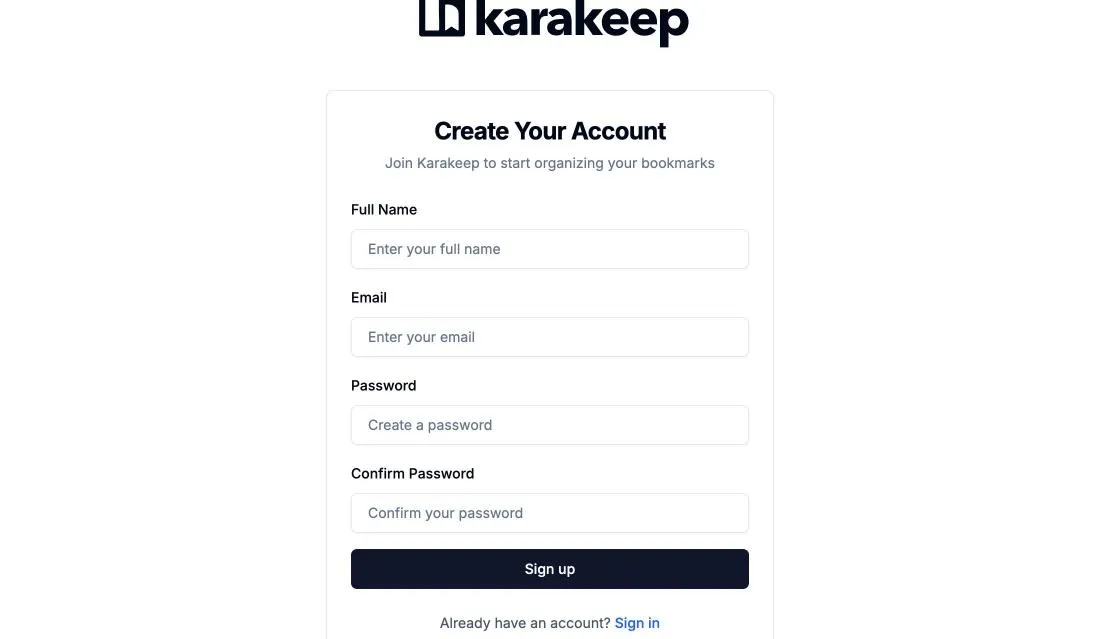
You should see the Karakeep login screen.
- Click on “Sign up”.
- Create your user account. The first user automatically becomes the administrator.
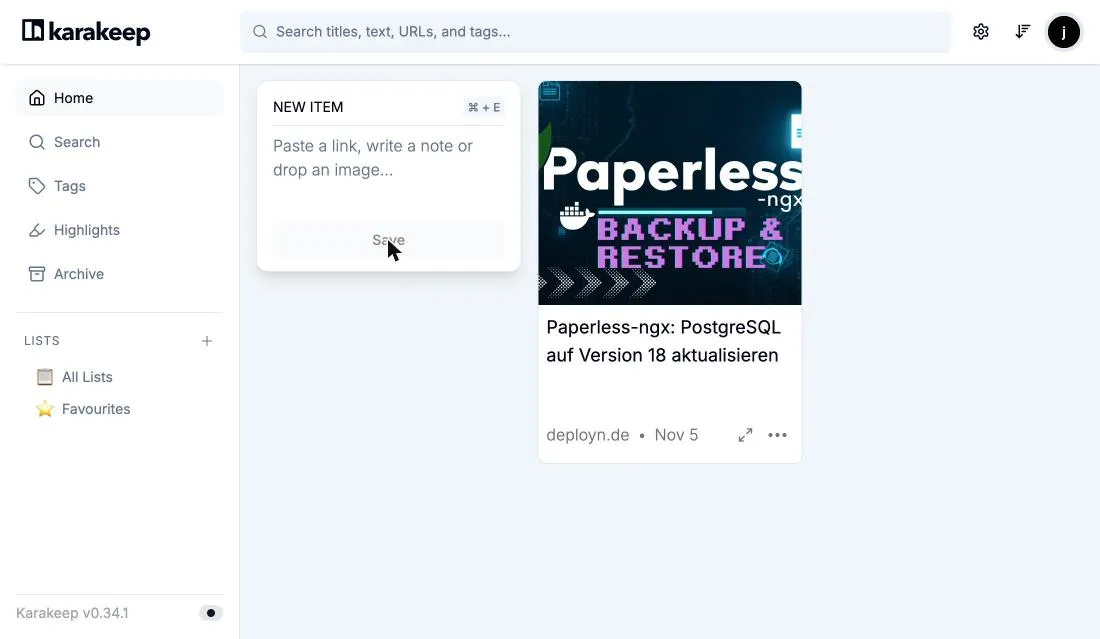
After signing in, you see the empty dashboard. You add bookmarks at the top left: paste a link and click “Save”. Karakeep fetches the page in the background with the Chrome container, stores the title and preview image and keeps a copy.
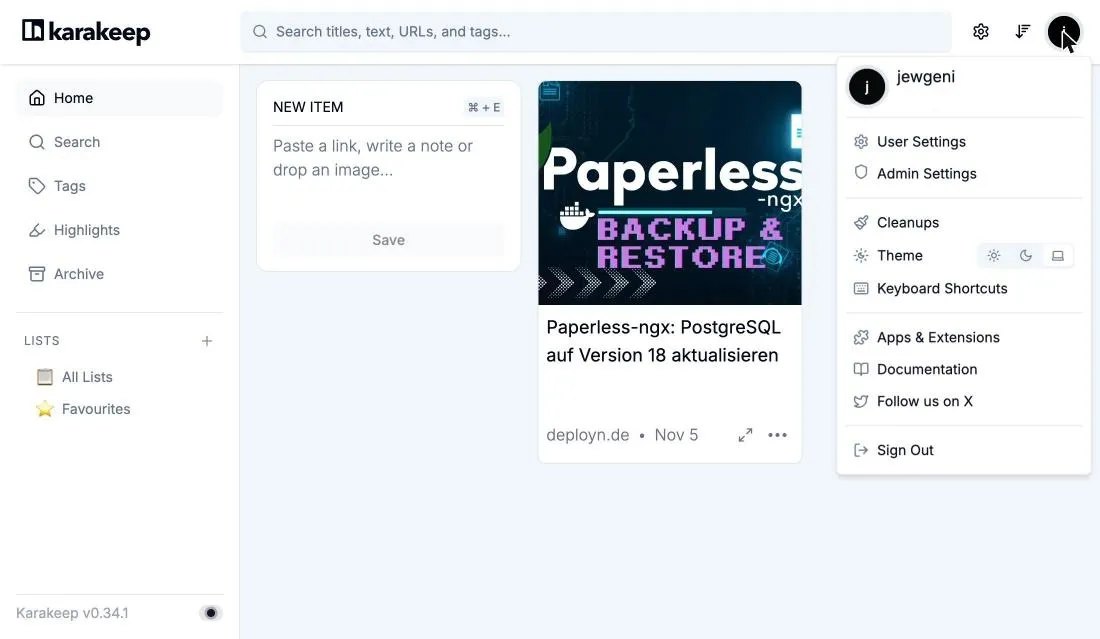
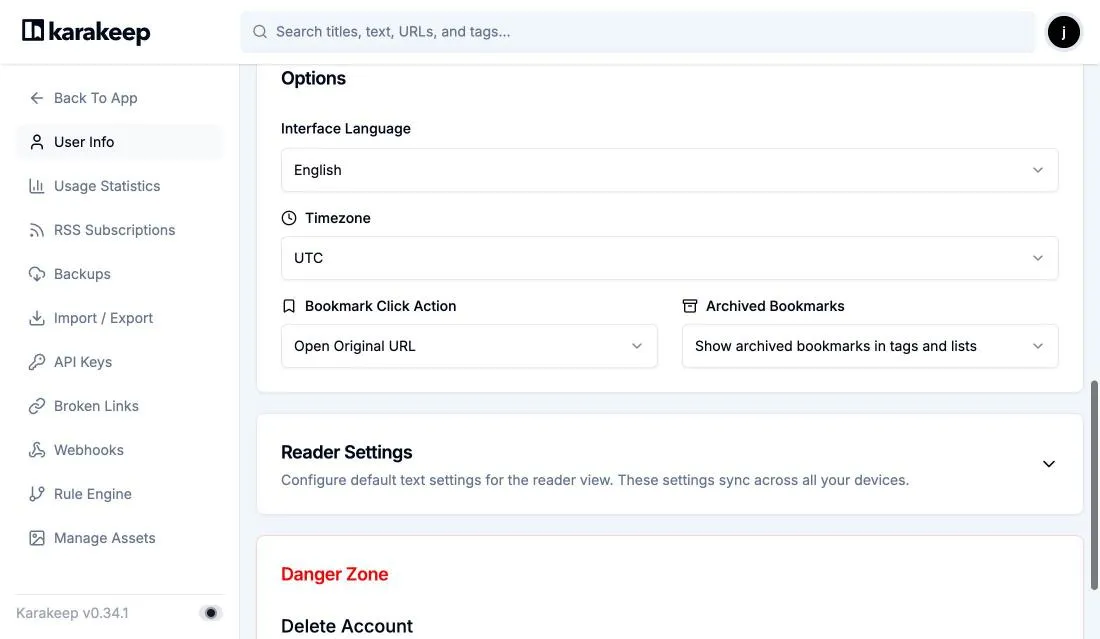
You change the language via your user menu (avatar at the top right): “User Settings” -> “User Info” -> “Interface Language” -> “German”.
Basic Configuration and First Steps
After successful installation and the first login, I recommend making a few basic settings.
Disable Signups (DISABLE_SIGNUPS)
Once you’ve created your admin account, it’s advisable to disable public registration unless you want anyone to be able to sign up.
- Open the
.envfile:Terminalbashnano .env - Add the following line:
.env
DISABLE_SIGNUPS=true - Save the file and restart Karakeep so the changes take effect:
If you now log out and open the pageTerminalbash
sudo docker compose down sudo docker compose up -d/signup, it saysSignups are currently disabled. As an administrator, you create further users yourself under “Admin Settings” -> “Users List”.
Set OCR Languages (OCR_LANGS)
If you want Karakeep to recognize text in images (OCR), you can set the languages for it.
- Open the
.envfile. - Add (e.g., for English and German):
.env
OCR_LANGS=eng,deu - Save and restart Karakeep:
Terminalbash
sudo docker compose down
sudo docker compose up -d
(Optional) Advanced Features with AI
Karakeep offers optional AI features like automatic tagging and summaries. This is not active by default. If you want to use your own API key (e.g., from OpenAI or OpenRouter):
I like to use OpenRouter as it gives me access to various models.
- Get an API Key: Create an account at OpenRouter.ai and generate an API key. Top up your balance if necessary.
- Adjust the
.envfile:Add/change the following variables:Terminalbashnano .envYou can find a list of available models on the OpenRouter website. Model names change quickly. For the image mode, the model must understand images..envOPENAI_API_KEY=YOUR_OPENROUTER_API_KEY # Your key from OpenRouter OPENAI_BASE_URL=https://openrouter.ai/api/v1 INFERENCE_TEXT_MODEL=google/gemini-3.5-flash-lite INFERENCE_IMAGE_MODEL=google/gemini-3.5-flash-lite - Restart Karakeep:
Terminalbash
sudo docker compose down
sudo docker compose up -d
Now, when you add bookmarks, tags should be generated automatically. You can also try to have articles summarized. Using the API costs money, but with moderate use and inexpensive models (like Gemini Flash), the costs are manageable (often less than a cent per request). Free models are also available, but they are less reliable (not in terms of results, but regarding rate limits, etc.).
Integrate RSS Feeds
Under “User Settings” -> “RSS Subscriptions”, you can add RSS feeds (e.g., from your favorite blog https://deployn.de/rss.xml). Karakeep will then import the articles, and you can read and manage them directly in the app – optionally, have them automatically tagged too!
Set up a Reverse Proxy with Caddy (HTTPS and Domain)
To securely access Karakeep via a domain with HTTPS (e.g., https://{{domain}}), we’ll set up a reverse proxy with Caddy. Caddy automatically handles SSL certificates from Let’s Encrypt.
1. Prepare Karakeep
a) Adjust Container Name and Networks in Karakeep’s compose.yaml:
We have already defined container_name: karakeep_web in Karakeep’s compose.yaml. Now, we’ll adjust the network settings.
Open Karakeep’s compose.yaml:
cd ~/karakeep # Make sure you are in the Karakeep directory
nano compose.yaml
Remove the port mapping and attach the web service to the external network proxy:
services:
    web:
        image: ghcr.io/karakeep-app/karakeep:${KARAKEEP_VERSION}
        container_name: karakeep_web # Important for Caddy
        restart: unless-stopped
        ports:
            - "{{port}}:3000"
        # ... env_file, environment, volumes and depends_on stay the same
        networks:
            - internal
            - proxy

networks:
    internal:
        external: false
    proxy:
        external: true
The services chrome and meilisearch stay unchanged.
Save the changes.
b) Adjust NEXTAUTH_URL in .env:
Open Karakeep’s .env file:
nano .envChange NEXTAUTH_URL to your future HTTPS domain:
NEXTAUTH_URL=https://{{domain}}Save the file.
2. Create Docker Network for the Proxy
This network will be shared by Caddy and Karakeep.
sudo docker network create proxy(If it already exists, that’s okay.)
3. Set up Caddy
We will create a separate directory for Caddy.
cd ~ # Go to home directory
mkdir caddy
cd caddy
mkdir data config # Subdirectories for Caddy data and configuration
a) Create Caddy compose.yaml:
nano compose.yamlContent:
services:
    caddy:
        image: caddy:2
        container_name: caddy
        restart: unless-stopped
        ports:
            - "80:80"
            - "443:443"
            - "443:443/udp"
        volumes:
            - ./Caddyfile:/etc/caddy/Caddyfile # Configuration file
            - ./data:/data # For certificates and other data
            - ./config:/config # For Caddy configuration
        networks:
            - proxy # Assign Caddy to the proxy network

networks:
    proxy:
        external: true
Save the file.
b) Create Caddyfile:
This is the configuration file for Caddy.
nano CaddyfileContent:
{{domain}} {
    encode gzip

    # Forward to the Karakeep web container via the Docker network
    # karakeep_web is the container_name from the Karakeep compose.yaml
    # 3000 is the internal port of Karakeep in the container
    reverse_proxy karakeep_web:3000
}
Save the file. Make sure your domain points to your server’s IP address via a DNS A-record!
4. Restart Caddy and Karakeep
First, we start Caddy:
cd ~/caddy # Change to the Caddy directory
sudo docker compose up -d
Then, we restart Karakeep so it picks up the network changes:
cd ~/karakeep # Change to the Karakeep directory
sudo docker compose down # Stops and removes the old containers
sudo docker compose up -d # Starts Karakeep with the new configuration
5. Access via HTTPS Domain
Wait a moment for Caddy to issue the SSL certificate. You should now be able to reach Karakeep at https://{{domain}}.
Updating Karakeep
To update Karakeep:
- Check the Karakeep releases for a new version and read the release notes.
- In the
.env, change the lineKARAKEEP_VERSIONto the new version. - Pull the new images and restart:
Docker only replaces the containers whose image changed. The database migration runs automatically on start.Terminalbash
cd ~/karakeep
sudo docker compose pull
sudo docker compose up -d
Conclusion
Karakeep is a powerful and flexible bookmark manager that can be self-hosted relatively easily thanks to Docker and Docker Compose. With a reverse proxy like Caddy, access becomes secure and user-friendly. The optional AI features and RSS integration complete the package, making Karakeep a central hub.
Are you already using a self-hosted bookmark manager? Which features are most important to you? Feel free to write it in the comments!
FAQ
Frequently asked questions
What is Karakeep?
Karakeep is an open-source application for managing bookmarks, notes, images, and RSS feeds. It can be hosted on your own server.
Why should I use Docker Compose for the installation?
Docker Compose simplifies the definition and execution of applications consisting of multiple containers (like Karakeep with its web service, Chrome service, and Meilisearch database). The entire configuration is bundled in a `compose.yaml` file.
Can I use the 'latest' or 'release' tag for the Karakeep image?
I recommend setting a fixed version in the .env (for example KARAKEEP_VERSION=0.34.1). A moving tag can change unnoticed on the next restart and cause incompatibilities. The Chrome image only exists with the tag release.
What is a bind mount and why is it used here?
A bind mount links a directory on your host system (the server) directly with a directory in the Docker container. This ensures that Karakeep's data (bookmarks, configuration, etc.) and Meilisearch's data (search index) are stored persistently, even if the containers are stopped or recreated.
Do I absolutely need a reverse proxy like Caddy?
Not strictly necessary for pure functionality, but highly recommended. A reverse proxy allows access via an easy-to-remember domain, provides HTTPS (encrypted connection), and can enhance security. Caddy also automates the procurement and renewal of SSL certificates.
How do I update Karakeep to a newer version?
Change KARAKEEP_VERSION in the .env, pull the new images (sudo docker compose pull) and restart the containers (sudo docker compose up -d). The database migration runs automatically on start.
Creating a user fails with the error 'no such table: user'. What is wrong?
Most likely the variable DATA_DIR=/data is missing in the .env. Without it, the migrated database does not end up where the app reads it. Set the variable, delete the empty folder data and restart the containers.
What should I do if something doesn't work after starting?
Check the container logs with `sudo docker compose logs -f web` (or `chrome`, `meilisearch`). Error messages indicating the problem are often found there. Also, ensure that all paths and environment variables are set correctly.
Changelog
Updated to Karakeep 0.34.1. Fixed the compose file, added the required variable DATA_DIR, renewed menu paths and screenshots, changed the Caddy section.