



Paperless-ngx: Set Up Storage Paths and Folder Structure
Paperless-ngx stores files as 0000001.pdf by default. Get readable file names and folders with storage paths, placeholders and the document_renamer command.

Contents
Paperless-ngx 3.4.2Docker 29.9Debian 13When you upload a document to Paperless-ngx, it saves the file on disk as 0000001.pdf. In the browser you never see that; the document is still called “Electricity bill September 2026”. On the server it looks different, and you notice at the latest when you make a backup or need the files without Paperless.
Here I set up a folder structure with readable file names. There are two tools: a global default (PAPERLESS_FILENAME_FORMAT) and storage paths that you define per group of documents. I show both on a running Paperless-ngx 3.4 with sample documents.
What Paperless stores by default
Without any setting, all originals end up in media/documents/originals, numbered by internal ID:
media/documents/originals/0000001.pdf
media/documents/originals/0000003.pdf
media/documents/originals/0000004.pdf
media/documents/archive/0000004.pdf
The archive folder holds the searchable PDF/A version that Paperless creates after text recognition. Both folders live in the volume you mounted as media in your compose.yaml.
This is not a bug. Paperless finds its documents through the database and needs no pretty names. A structure pays off when you:
- want to pull single files from the server or from a backup,
- may switch away from Paperless later and still want to understand the archive,
- need the documents as normal folders too, for example via Samba or Nextcloud sync.
One important rule first
Never move or rename files inside the media folder by hand. Paperless remembers the file name of every document. If the file changes on disk, the sanity checker reports it as missing.
All changes go through Paperless itself. It renames files as soon as you save a document or change a storage path. Make a backup before bigger changes, as described here.
The global default: PAPERLESS_FILENAME_FORMAT
The simplest option is one template for all documents. Add it to the .env next to your compose.yaml:
PAPERLESS_FILENAME_FORMAT={{ created_year }}/{{ correspondent }}/{{ title }}This gives you folders by year, subfolders by correspondent, and the title as file name. Paperless adds the extension itself. Restart the container so the change takes effect:
sudo docker compose up -d paperlessNew documents use the template immediately. Existing documents stay where they are at first. For those, run the renamer:
sudo docker compose exec paperless document_renamerThe script goes through all documents and moves each file to the place the current template dictates. For my twelve documents it takes under a second.
Placeholders
You can use these placeholders in the template:
| Placeholder | Content |
|---|---|
{{ title }} |
Document title |
{{ correspondent }} |
Correspondent name, otherwise none |
{{ document_type }} |
Document type, otherwise none |
{{ tag_list }} |
All tags, comma separated |
{{ asn }} |
Archive serial number |
{{ created }} |
Date of issue, for example 2026-10-28 |
{{ created_year }} |
Year, {{ created_month }} month (01-12), {{ created_day }} day |
{{ added_year }} |
Year of upload, likewise added_month and added_day |
{{ original_name }} |
Original file name without extension |
{{ owner_username }} |
Owner of the document |
If a document has no correspondent, for example, the path contains none. With PAPERLESS_FILENAME_FORMAT_REMOVE_NONE=true Paperless drops such parts, including the space before them.
Two documents with the same path automatically get the suffix _01, _02 and so on. Characters such as / or : in titles are replaced with a dash.
Avoid {{ tag_list }} in long paths. Operating systems limit path length, and Paperless then keeps the old path.
Storage paths: different rules per group of documents
A single template rarely fits everything. You want invoices sorted by month, contracts by contract partner, tax documents by year. That is what storage paths are for. Each storage path has a name and its own template with the same placeholders.
You find them under Attributes → Storage paths. I created three:
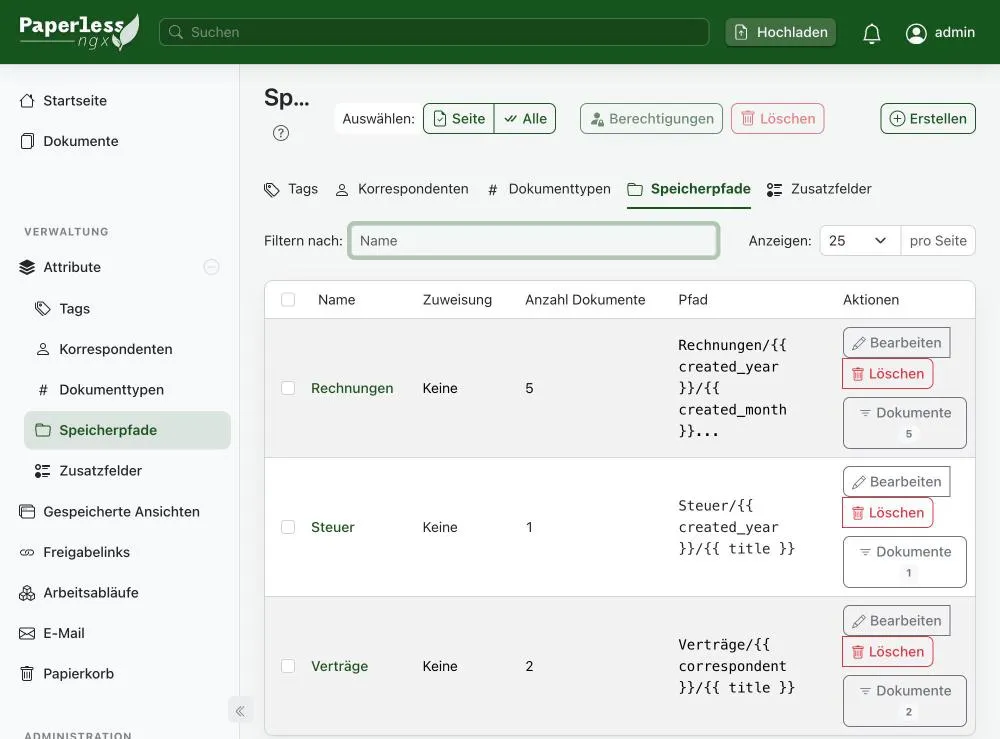
| Name | Template |
|---|---|
| Rechnungen | Rechnungen/{{ created_year }}/{{ created_month }} {{ correspondent }} - {{ title }} |
| Verträge | Verträge/{{ correspondent }}/{{ title }} |
| Steuer | Steuer/{{ created_year }}/{{ title }} |
To create one, click Create, enter a name and the template. I leave Matching algorithm on “None”. Assignment is handled by workflows, more on that below.
Preview in the dialog
The edit dialog has a collapsible Preview field. Pick an existing document and you see right away where it would end up with this template:
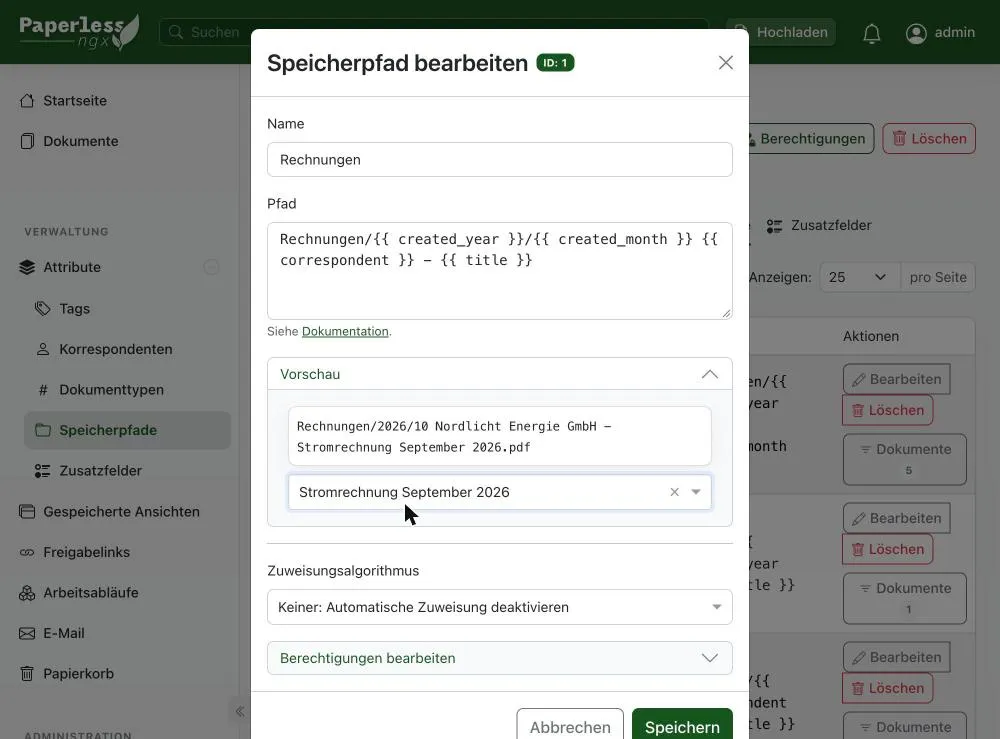
Use the preview before you save. As soon as you save, Paperless moves all documents that use this storage path.
Give a document a storage path
In the document itself, the Details tab has a Storage path field. Select the path and save. Paperless renames the file immediately.
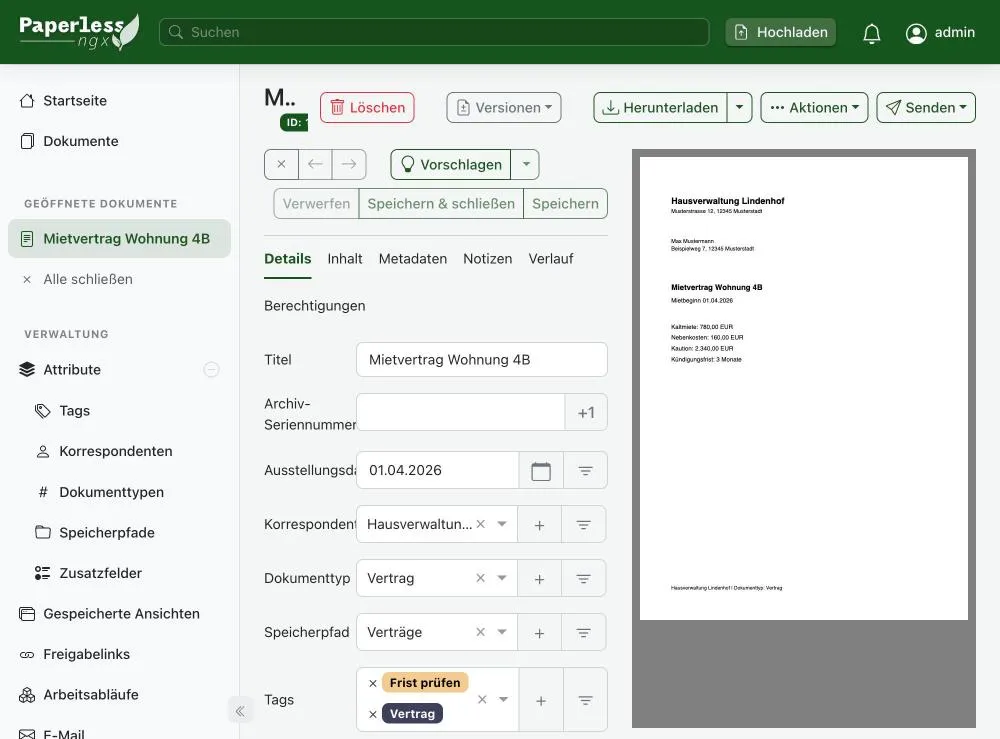
You can also select several documents in the list and set a storage path through bulk edit.
Assign storage paths automatically
Assigning by hand gets tedious with a hundred documents. I let workflows do it. The Assignment action has a field for the storage path. My workflow “Rechnungen automatisch kennzeichnen” sets the storage path “Rechnungen” next to the tag and document type.
The matching algorithm on the storage path itself works too, for example “Any word” with Rechnung. The workflow is easier to follow because tag, type and path sit in one place.
The result on the server
After assignment, and with the global default {{ created_year }}/Sonstiges/{{ title }} for everything without a storage path, my originals folder looks like this:
2026/Sonstiges/Kontoauszug Oktober 2026.pdf
2026/Sonstiges/Notiz Steuer 2026.pdf
Rechnungen/2026/08 Praxis Dr. Meyer - Arztrechnung August 2026.pdf
Rechnungen/2026/09 Kabelnetz Nord AG - Internet September 2026.pdf
Rechnungen/2026/10 Nordlicht Energie GmbH - Stromrechnung September 2026.pdf
Rechnungen/2026/11 Haustechnik Nord GmbH - Heizungswartung 2026.pdf
Steuer/2026/Einkommensteuerbescheid 2025.pdf
Verträge/Hansa Versicherung AG/Hausratversicherung.pdf
Verträge/Haustechnik Nord GmbH/Wartungsvertrag Heizung.pdf
Verträge/Hausverwaltung Lindenhof/Mietvertrag Wohnung 4B.pdf
Documents with a storage path follow its template. Everything else falls back to the global default. The archive folder gets the same structure.
Plan the folder structure
Set up the structure before you import hundreds of documents. A rebuild is possible, but every change moves many files.
- Sort folders by what never changes: document type and year.
- Put into the file name what you need when browsing in a file manager: date, correspondent, title.
- Contracts run for years. Sort them by contract partner, not by year.
- You rarely need more than three levels. Full-text search in Paperless replaces deep folders.
- Tags cover everything folders cannot, such as “Check deadline” or “Tax deductible”.
Common mistakes
Documents are reported as missing. You moved files by hand. Restore the backup or run sudo docker compose exec paperless document_sanity_checker to see the list of affected documents.
The path contains none. A placeholder has no value for that document. Assign a correspondent or document type, or enable PAPERLESS_FILENAME_FORMAT_REMOVE_NONE.
The template has no effect. On an error in the placeholders Paperless falls back to 0000001.pdf. Check the brackets and test the template in the preview of a storage path.
Old documents stay in the old place. After changing PAPERLESS_FILENAME_FORMAT you must run document_renamer once. Changes to a storage path apply automatically.
FAQ
Frequently asked questions
Where does Paperless-ngx store my documents?
In the media folder you mount in the compose.yaml. Originals are in media/documents/originals, the searchable PDF/A versions in media/documents/archive.
Can I rename files in Paperless-ngx?
Yes, but only through Paperless. Change the title or the storage path in the document, or set PAPERLESS_FILENAME_FORMAT. Files renamed by hand are reported as missing.
What does document_renamer do?
The command docker compose exec paperless document_renamer moves all existing documents to the place the current template dictates. You need it after changing PAPERLESS_FILENAME_FORMAT.
What is the difference between a storage path and PAPERLESS_FILENAME_FORMAT?
PAPERLESS_FILENAME_FORMAT is the default template for all documents. A storage path is its own template for a group of documents and takes precedence over the default.
Does Paperless move documents when I change a storage path?
Yes. Paperless checks the file name on every save and moves affected documents automatically. Make a backup first.