

Paperless-NGX: Your Path to the Paperless Office
Everything about Paperless-NGX: Installation (Synology NAS, Docker, VPS), Configuration, Backup, OCR, Document Management & the paperless office.
Put an end to paper chaos and endless searching! Paperless-NGX is the leading open-source Document Management Software (DMS) that transforms your physical archive into a searchable, digital knowledge base. Whether it’s invoices, contracts, or notes – learn here how to install, configure, and optimally use Paperless-NGX to efficiently manage your documents and finally achieve the paperless office.
This guide serves as a central hub and summarizes the most important information from the blog posts.
What is Paperless-NGX and why should you use it?
-
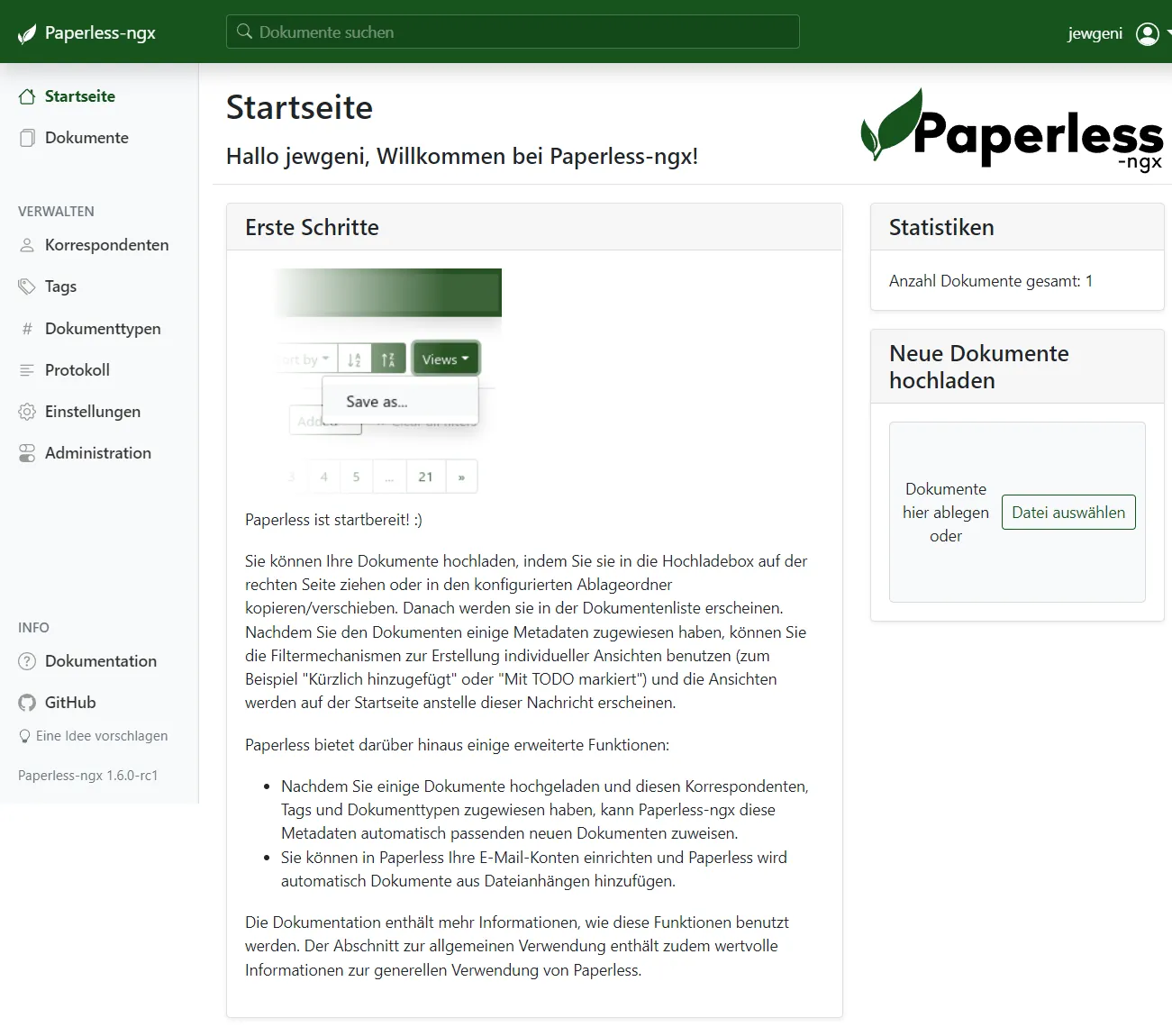
Origin & Development: The history of Paperless-NGX is a classic open-source success story. On January 1, 2017, Daniel Quinn released the first version (0.3.0) of his project “Paperless” – motivated by the desire to no longer search through dusty folders for documents. About a year later, the program was stable enough for version 1.0.0 (January 6, 2018). After two more years, Quinn ended development with version 2.7.0 (January 27, 2019).
Jonas Winkler took on the project and forked it as Paperless-ng. The changes were too extensive for the original repository: “NG” stands for both Angular (the frontend framework used) and “next-gen.” The first pre-release appeared on November 18, 2020, and the first stable version on January 21, 2021. Unfortunately, this project also became inactive – the last commit dates from September 14, 2021, and version 1.5.0 remained the final release.
The community considered how to move forward, and in 2022 two forks emerged: Paperless-reborn and Paperless-NGX. The latter prevailed and continues to be actively developed and constantly improved by a dedicated community to this day.
-
Core Features:
- Automatic OCR (Text Recognition): Makes scanned documents (PDFs, images) fully searchable.
- Intelligent Metadata: Recognizes correspondents, types, dates, and suggests tags.
- Flexible Tagging: Organize documents according to your own criteria.
- Powerful Search: Find anything using full-text search and filters.
- Automatic Import: Monitors folders or email inboxes.
- Broad File Type Support: PDFs, images by default; Office documents and emails optionally with Tika/Gotenberg.
- Web Interface & Mobile Apps: Access from anywhere.
- Open Source & Self-Hosted: Full data control, free of charge.
Planning Your Paperless-NGX Setup
Before you install, consider:
-
The Right Platform:
- Synology NAS: Ideal for many home users. Easy to set up, energy-efficient. Requires Docker/Container Manager. My Recommendation & Main Guide:
➡️ Guide: Install Paperless-NGX on Synology NAS - VPS/Dedicated Server: For more performance, flexibility, and access from anywhere. Requires Linux knowledge.
➡️ Guide: Install Paperless-NGX on a VPS/Linux Server - Other Home Server (Raspberry Pi, NUC, etc.): Feasible, pay attention to RAM (min. 4GB recommended with OCR/Tika). The VPS guide can often be adapted.
➡️ Guide: Paperless-NGX on Home Server (General) (Your general setup post) - Other NAS (QNAP, Ugreen, etc.): If Docker is supported, the Synology guide is often a good starting point, but details (folders, users) may differ.
- Synology NAS: Ideal for many home users. Easy to set up, energy-efficient. Requires Docker/Container Manager. My Recommendation & Main Guide:
-
Docker: Paperless-NGX is best run as a Docker container. This ensures easy installation and updates.
-
Storage Locations: Plan where the
data,media,db,db-backup, andconsumefolders should reside. A clear structure is important! -
Scan Workflow: How do documents get into the system? A network scanner scanning directly into the
consumefolder is the most elegant solution. Scan-to-email or manual upload are alternatives. -
Backup: Absolutely essential! Back up at least
data,media, and the database dumps fromdb-backupor the export from the document_exporter.
The Paperless-NGX Workflow in Detail
- Capture (Consume): Document lands in the
consumefolder (or via email, upload). - Process & OCR: Duplicate check, text recognition.
- Archive & Metadata: Automatic detection of correspondent, type, date; tag assignment (manual or rule-based).
- Store: Original and optionally archive PDF land in the
mediafolder. - Search & Find: Access via Web UI or apps.
Important Features & Configurations
-
Tika & Gotenberg (Office Documents & Emails): To process more than just PDFs/images, add Tika and Gotenberg to your Docker stack. Increases RAM requirements!
-

Performing Updates: Keep Paperless up-to-date! New versions often bring important improvements and fixes. In Portainer, pull the new images, stop the stack, and restart it:
-
Using Metadata Effectively: Learn how to use correspondents, document types, and tags optimally to quickly find your documents again.
-
Filename Formatting (
PAPERLESS_FILENAME_FORMAT): Control how your files are named and structured in themediafolder. -
Backup & Restore: Set up a solid backup and test the restore process. The Document Exporter/Importer is useful for migrations.
Frequently Asked Questions (FAQ)
- Is Paperless-NGX really free? Yes, the software is open source. Costs only arise for hardware (server/NAS/power) and optionally for cloud backup storage.
- How secure is my data? Security depends on your server/NAS configuration. Paperless-NGX itself is secure, but you need to ensure a secure environment (firewall, updates, strong passwords) and backups.
- Can I export documents again?
Yes, you have direct access to the original files via the
mediafolder. The Document Exporter also creates a structured archive including metadata. - Is it worth the effort compared to cloud services? If data sovereignty, control, and no recurring subscription costs are important to you: Yes. Cloud services are often easier to set up, but you give up control.
- Which scanners work well? Scanners with network scanning capabilities (Scan-to-SMB/FTP/Email) are ideal. Models from Brother (e.g., ADS series) or Fujitsu (ScanSnap) are popular.
Related Blog Posts for The Ultimate Paperless-NGX Guide: Installation & Usage (2025)
Paperless-ngx: Set Up Automated Docker Backup with Ofelia
Set up automated backups for Paperless-ngx directly in your Docker stack using Ofelia. Schedule reliable cron jobs — no external server needed. Full guide.
Paperless-ngx Backup & Restore: The Right Strategy
Create a secure, incremental Paperless-ngx backup with Docker and restore your documents in an emergency. The complete step-by-step guide for your DMS setup.
How to Install Paperless-ngx on a Synology NAS with Docker
Learn how to install Paperless-NGX on your Synology NAS — a powerful open-source document management system — using Docker and Portainer. Step-by-step guide.
Install Paperless-ngx on Your VPS with Docker & Caddy
Install Paperless-ngx with Docker on your VPS and securely access your documents from anywhere. Complete guide with Caddy reverse proxy and WireGuard VPN.
Paperless office with DMS Paperless-ngx on Homeserver
Install Paperless-ngx with Docker on your homeserver and transform your office into a paperless system. The complete step-by-step guide for your DMS setup.