



Paperless-ngx Workflows: Sort Documents Automatically
Paperless-ngx workflows assign tags, document types, correspondents and storage paths automatically. Triggers, actions and four ready-made examples.

Contents
Paperless-ngx 3.4.2Docker 29.9Debian 13Without automation you have to file every new document in Paperless-ngx yourself: set a tag, pick a document type, enter a correspondent. With five documents a month that works. With fifty it does not.
Workflows take over. You define when a workflow starts and what it does. Here I build four workflows and test them with sample documents.
How a workflow is built
A workflow consists of triggers and actions. As soon as a document matches a trigger, Paperless runs the actions in order. You find the list under Workflows in the sidebar:
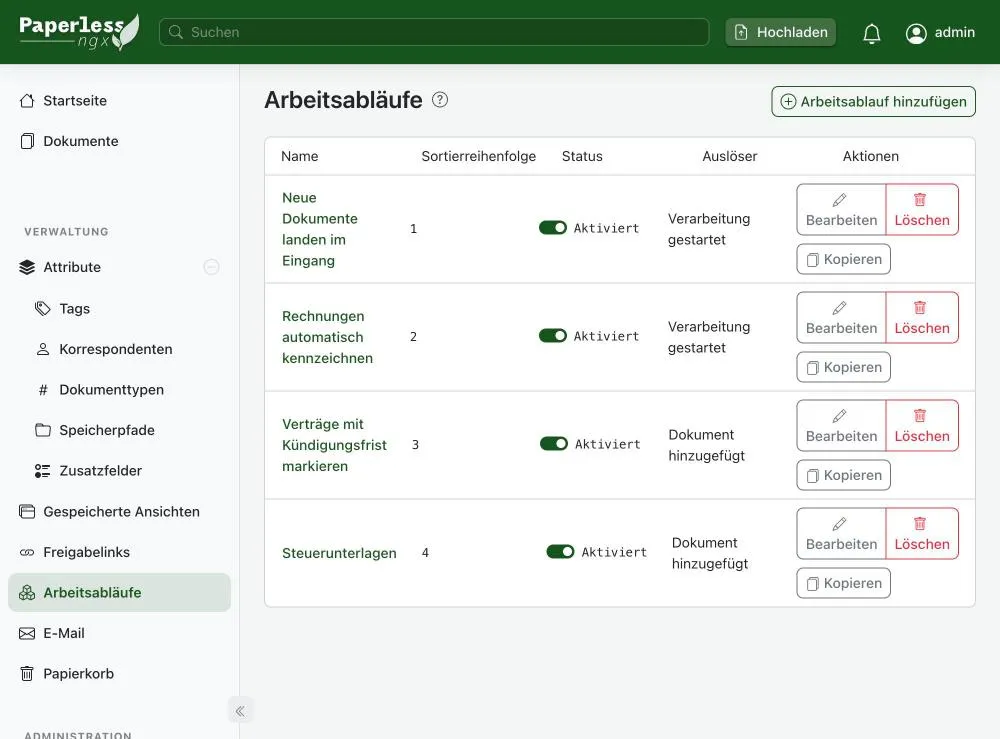
The Order column decides in which order several workflows run when a document matches more than one.
The four triggers
| Trigger | When it fires |
|---|---|
| Consumption started | The document arrives, the text is not yet recognized. |
| Document added | The document is fully processed, the recognized text is available. |
| Document updated | You change a document in Paperless. |
| Scheduled | Daily or at a fixed interval, relative to a date such as Added or Created. |
The difference between the first two matters. With Consumption started, Paperless only knows the file name, the source folder and the source. To look for a word in the document text you need Document added.
Every trigger has filters. All filters you set must match at the same time:
- Source: folder (consume), web upload, API or email.
- File name: with wildcards, such as
*invoice*or*.pdf. Case does not matter. - Path of the source folder, for documents from the folder.
- Content matching: words in the recognized text, using the same algorithms as tags (“Any word”, “All words”, “Exact match”, “Regular expression”).
- Advanced filters: for example only documents with a certain tag.
The actions
| Action | What it does |
|---|---|
| Assignment | Sets tags, correspondent, document type, storage path, title, owner, permissions and custom fields. |
| Removal | Removes tags, correspondents, types and more. |
| Sends the document by email to an address. | |
| Webhook | Calls a URL, for example for n8n or Home Assistant. |
| Move to trash | Moves the document to the trash. |
| Password removal | Unlocks password-protected PDFs using a list of passwords. |
| Apply AI suggestions | Sets metadata from a language model, from version 3. |
In the title, in emails and in webhooks you can use placeholders such as {{correspondent}}, {{created_year}} or {{doc_title}}. Date placeholders only exist for the Added and Updated triggers.
Workflow 1: New documents land in the inbox
I want to check every new document before it counts as done. So it gets the tag “Inbox”. Paperless also marks tags with the “inbox tag” property automatically on every new document. A workflow gets you the same result and lets you add conditions, such as the source.
- Trigger: Consumption started, sources: all four, file name:
* - Action: Assignment, tag: Inbox
The file name * is deliberate. For this trigger Paperless requires at least one filter for file name, path or mail rule. Without one the interface shows an error when you save. With * every file matches.
Workflow 2: Recognize invoices
My invoices almost always have “rechnung” in the file name, such as 2026-08-20_arztrechnung.pdf. That is enough of a signal and I need no text recognition.
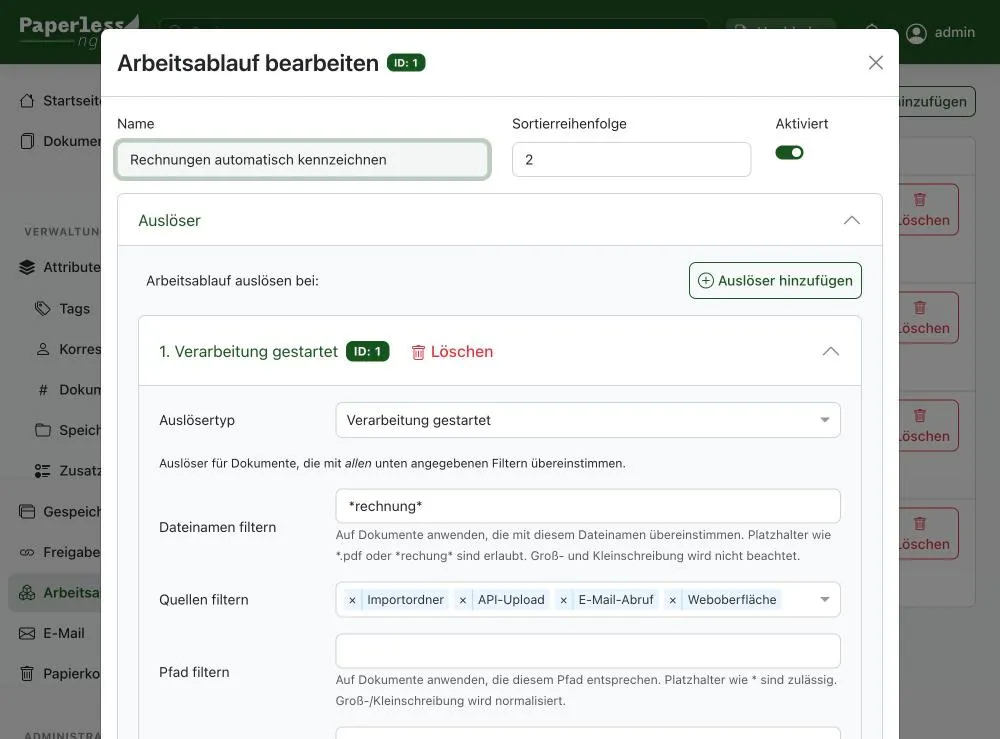
- Trigger: Consumption started, file name:
*rechnung* - Action: Assignment, tag: Rechnung, document type: Rechnung, storage path: Rechnungen
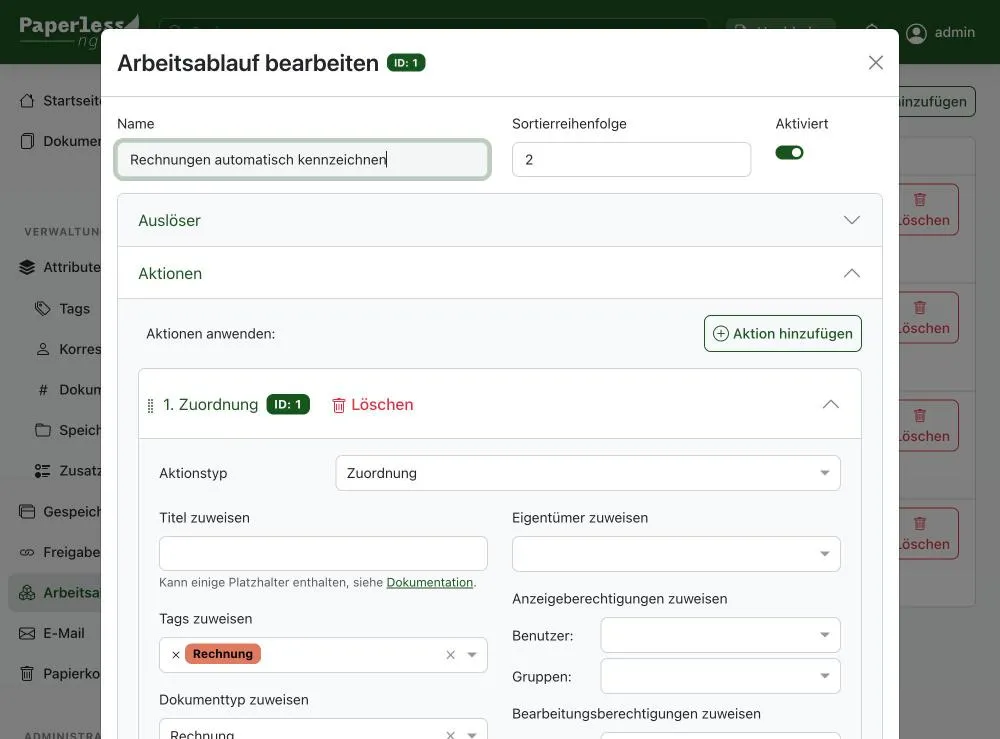
The storage path makes sure the file later lands in the folder Rechnungen/2026/. I show what that looks like in Storage paths and folder structure.
Workflow 3: Contracts with a notice period
I recognize contracts by content, not by name. Somewhere in every contract the word “Kündigungsfrist” (notice period) appears. For that I need the recognized text.
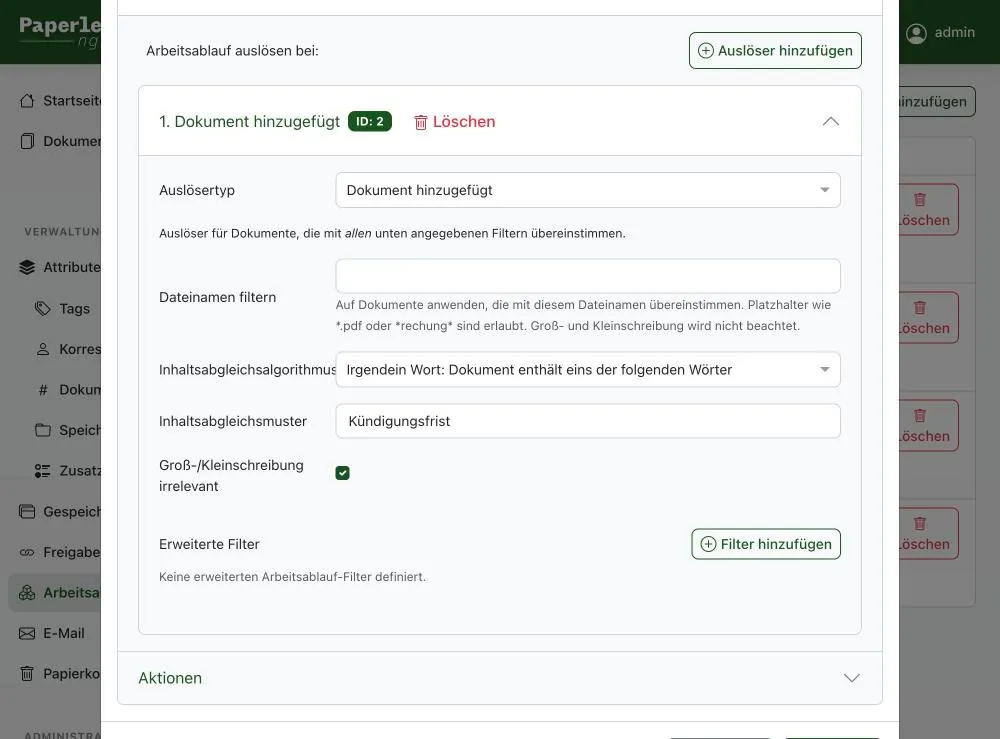
- Trigger: Document added, content matching “Any word”, pattern:
Kündigungsfrist - Action: Assignment, tags: Vertrag and Frist prüfen, document type: Vertrag, storage path: Verträge
The second tag “Frist prüfen” puts every contract on a saved view that I show on the start page. That way I see contracts where I still have to note a deadline.
Watch the spelling. In my test, one sample PDF said “Kuendigungsfrist” instead of “Kündigungsfrist”. The workflow did not recognize it, because ü and ue are different characters to Paperless. If your documents use both, enter both spellings separated by a space.
Workflow 4: Tax documents
I recognize notices from the tax office by typical terms. I use “Any word” with Steuernummer Einkommensteuer. That means the document contains at least one of the two words.
- Trigger: Document added, content matching “Any word”, pattern:
Steuernummer Einkommensteuer - Action: Assignment, tag: Steuer, document type: Bescheid, storage path: Steuer
This is generous. A letter with only one of these words already matches. For a stricter rule choose “All words”.
Test the result
I uploaded ten sample documents, including invoices, two contracts, a tax notice and a bank statement. The result:
- Invoices got tag, type and storage path on upload.
- The two contracts got the tags “Vertrag” and “Frist prüfen” after text recognition.
- The tax notice got the tag “Steuer” and the type “Bescheid”.
- The bank statement matched no workflow and stayed in the inbox with the tag “Inbox”.
On the start page a dashboard now shows what sits in the inbox and which contracts have a deadline:
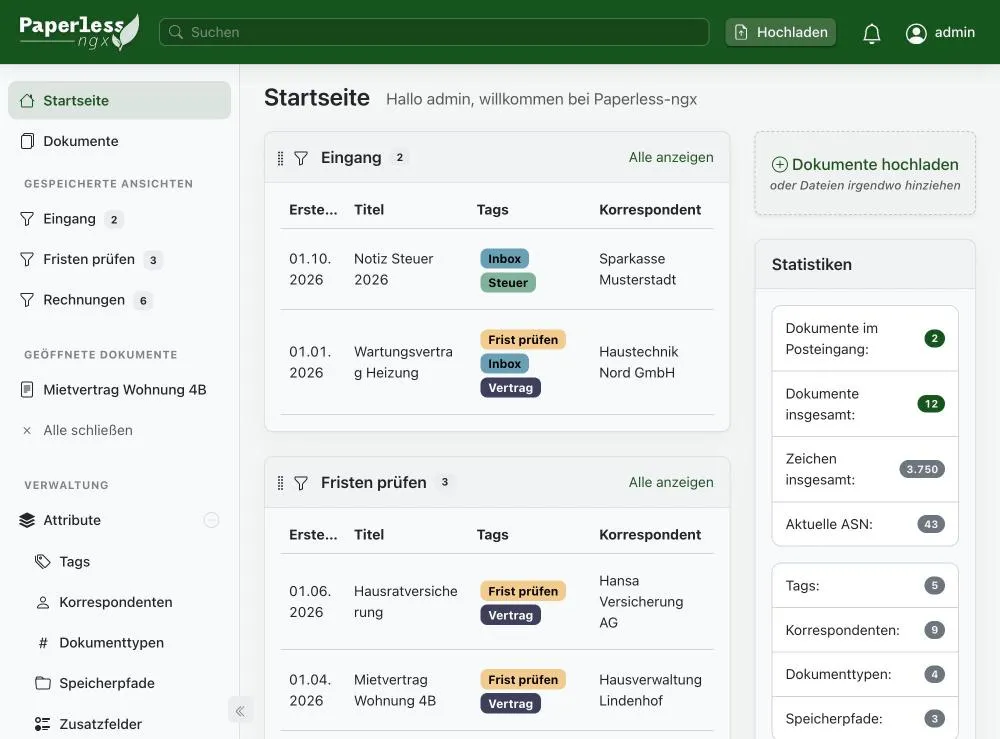
You create saved views from the document list: set filters, choose Save view, and enable that it appears on the start page.
What to keep in mind
- Workflows only apply to new documents. A new workflow does not change existing documents. Use bulk edit for those.
- All matching workflows run. There is no “first match wins”. They run one after another, in the order of the Order column.
- Test with one document. After each change upload a sample file and check the result before you import a hundred documents.
- You fix filters that were too generous in the list. A changed workflow does not clean up documents that were already assigned wrongly.
Workflows and automatic matching
Paperless can learn assignments without workflows too. Tags, correspondents, document types and storage paths offer the “Auto” algorithm. It learns from documents you already filed and suggests matches. That works well once you have a few dozen cleanly filed documents. Fixed rules such as “contains Kündigungsfrist” are better kept in a workflow because they are predictable.
FAQ
Frequently asked questions
What are workflows in Paperless-ngx?
Workflows are rules with triggers and actions. If a document matches the trigger, Paperless automatically sets tags, document type, correspondent, storage path and more.
Why does Paperless show an error about file name, path or mail rule in a workflow?
The Consumption started trigger requires at least one filter for file name, path or mail rule. Enter an asterisk as file name so that every file matches.
When do I use Document added instead of Consumption started?
Use Document added when the workflow should react to words in the document text. With Consumption started the text has not been recognized yet.
Do new workflows also apply to old documents?
No. Workflows only apply to new or changed documents. Edit existing documents with bulk edit in the document list.
Can a workflow run several actions?
Yes. You can add any number of actions to a workflow, for example assignment followed by email or webhook.