



Arcane for Docker: Manage Containers, Compose Stacks, and Updates
Install Arcane with Docker Compose and manage Docker from your browser. See the stack editor, container logs, image updates, volumes, and backups in action.
Contents
Arcane 3.0.1Docker 29.10.0Docker Compose 5.7.2Debian 13Arcane gives you a web interface for your Docker host. If a service goes down, you can read its logs, check CPU and memory usage, and restart the container from your browser. You can also edit Compose files, check for image updates, and set up Docker volume backups.
One Arcane container is enough for a single home server. Add agents to bring your other Docker hosts into the same dashboard.
Summary
- Containers lists running and stopped containers, including ones you started from the Docker CLI.
- Projects is where you work with Compose stacks. Edit the YAML, start a group of services, and follow the deployment.
- Updates, Volumes, and Git Syncs let you keep images current, back up application data, and track changes to Compose files.
Install Arcane with Docker Compose
Save the Compose file and encryption key
Create a
~/arcanedirectory and save the following ascompose.yamlinside it. Open Variablen anpassen (Customize variables) and replace the example IP 192.168.178.50 with your Docker host’s address. On a public server, follow the HTTPS setup before starting Arcane.compose.yamlyamlservices: arcane: image: ghcr.io/getarcaneapp/manager:v3.0.1 restart: unless-stopped cgroup: host ports: - "3552:3552" environment: ARCANE_APP_URL: http://{{server_ip}}:3552 ARCANE_ENCRYPTION_KEY: ${ARCANE_ENCRYPTION_KEY:?Set ARCANE_ENCRYPTION_KEY in .env} volumes: - /var/run/docker.sock:/var/run/docker.sock - arcane-data:/app/data volumes: arcane-data:Generate a key with
openssl rand -hex 32. Save it in a file named.envnext to the Compose file, replacing the example value below. Set the file permissions withchmod 600 .env..envdotenvARCANE_ENCRYPTION_KEY=YOUR_GENERATED_KEYStart Arcane and sign in
Run these commands in
~/arcane. The second command prints the initial password Arcane generated.Terminalbashsudo docker compose up -d sudo docker compose cp arcane:/app/data/initial-admin-password - | tar -xOOpen
http://{{server_ip}}:3552in your browser. Sign in asarcaneand set a new password.
Use a custom domain with HTTPS
On a VPS, use a reverse proxy. If Caddy runs as a service directly on the Docker host, change Arcane’s port mapping to 127.0.0.1:3552:3552 and set ARCANE_APP_URL to https://arcane.example.com. Point your domain to the server and open ports 80 and 443 for Caddy.
{{domain}} {
    reverse_proxy 127.0.0.1:3552
}
Caddy obtains the certificate and forwards WebSocket connections for live logs. To make sign-in rate limits work as intended, set ARCANE_TRUSTED_PROXIES to your proxy’s address or network. The Arcane reverse proxy docs show how to find the right address.
Running Caddy in Docker? Connect both services to the same Docker network. Caddy can then proxy directly to arcane:3552, and Arcane can run without its own published port.
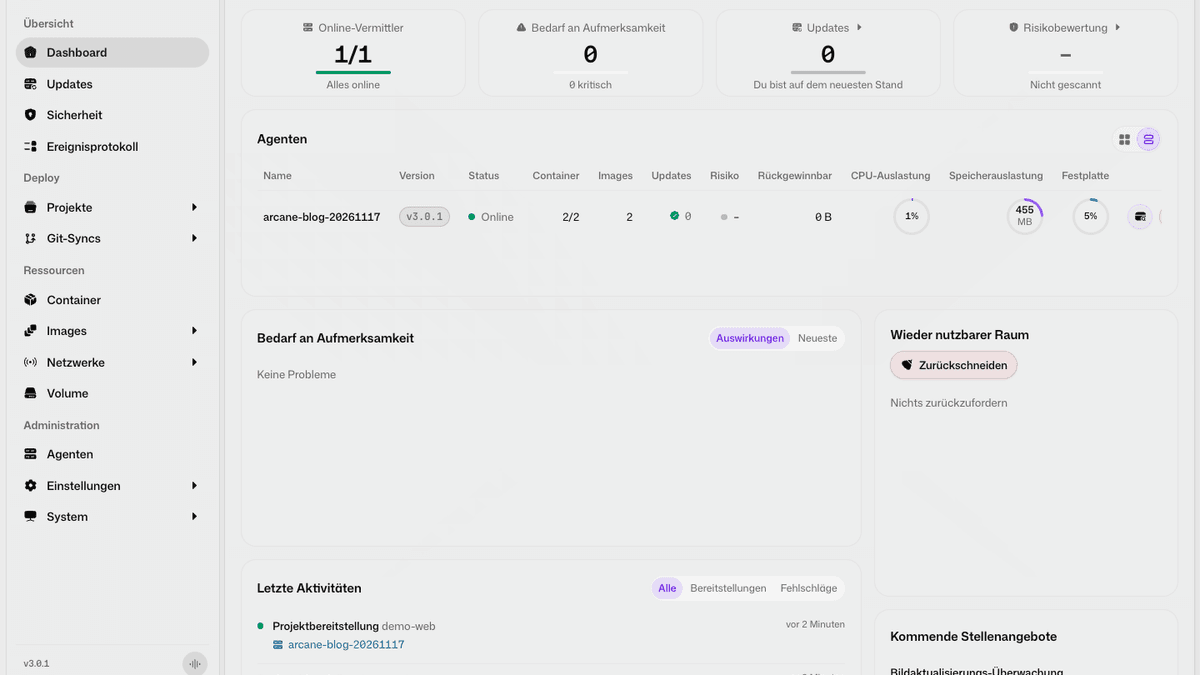
Dashboard and container overview
The dashboard shows how many containers are running on each host and flags updates or issues that need attention. In Containers, you can filter by status, host, or Docker label. For example, you can find stopped containers on your NAS without sorting through the ones on your other server.
Click a container name to open its details. Configuration shows its image, startup command, and environment variables. Networks shows Docker networks and port mappings. Use Metrics to spot high CPU or memory usage and Processes to see what’s running inside the container.
You can also create a standalone container without Compose. The form lets you choose the image, ports, mounts, environment variables, and restart policy. For services that belong together, such as a web app and its database, I use a Compose project. That keeps their settings in one file so I can deploy them together.
Manage Compose projects in the browser
Each project has a compose.yaml. In its workspace, you can keep related files such as .env or an application config alongside it. The editor validates the Compose file and highlights errors as you work. The same project view shows its services and their running containers.
Open Projects → Create Project, name the project demo-web, and replace the sample YAML in the editor.
services:
    web:
        image: nginx:alpine
        restart: unless-stopped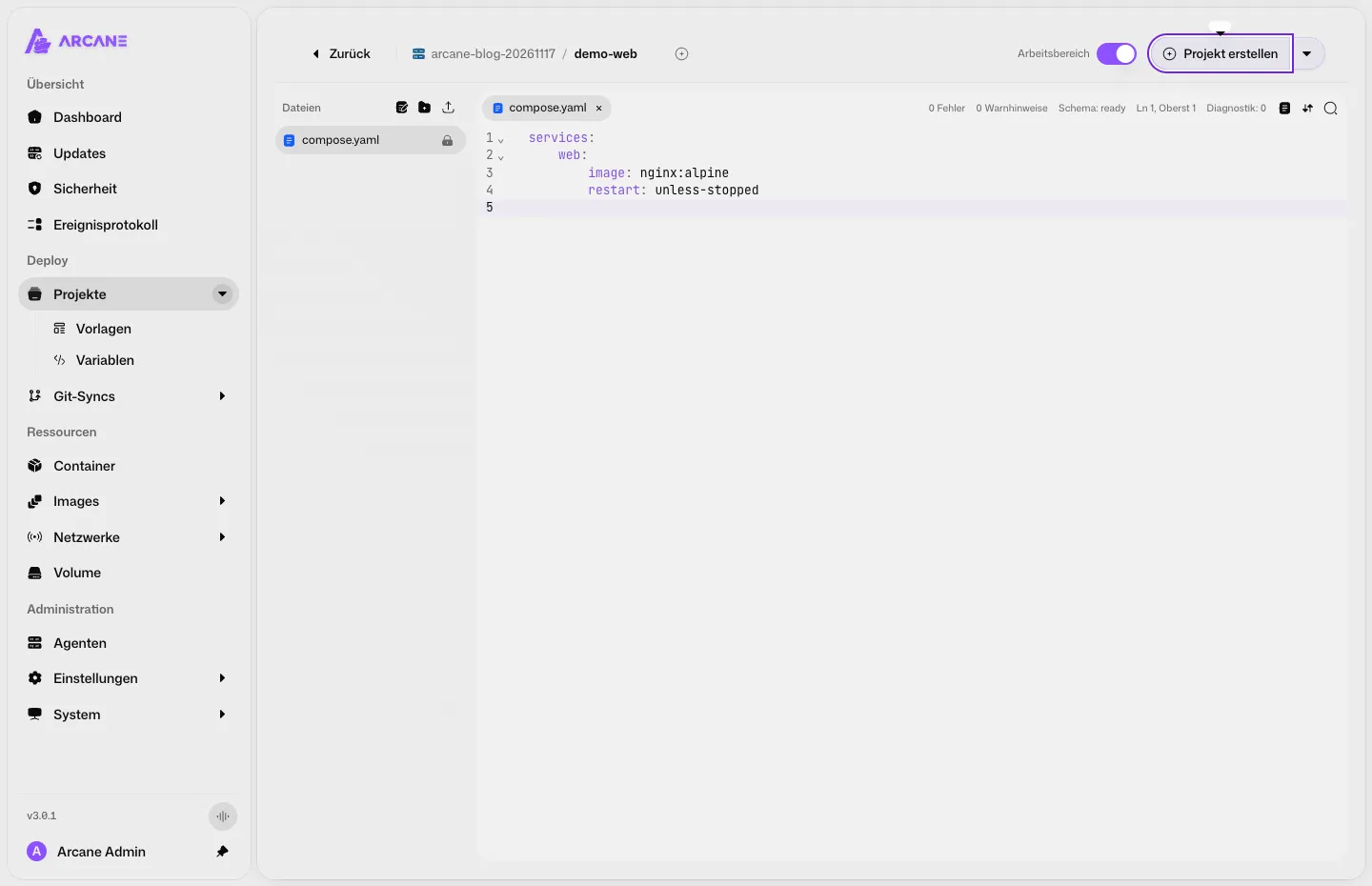
Click Create Project, then Up. A running Nginx container is enough to try out the logs and metrics. The example stack publishes no host ports.
- Up starts the project’s services. Docker pulls the image on the first run.
- Down stops the stack and removes its containers. Project files and named volumes are preserved.
- Restart restarts the same containers. Redeploy applies configuration changes and can pull images again and recreate containers.
If you already have Compose files on the host, mount their project directory into Arcane. Use the same absolute path on the host and in the container, and set ARCANE_PROJECTS_DIRECTORY to that path. This keeps the directory accessible to the CLI and lets relative bind mounts such as ./config resolve correctly. The project documentation also covers adding more project directories.
Live logs, shell access, and restarts
In Containers, open demo-web-web-1. Use the play button in the Logs tab to start streaming. You can search the output, change how many lines Arcane shows, or download the logs Docker still has. In the display options, you can set the stream to start automatically when you open the tab.
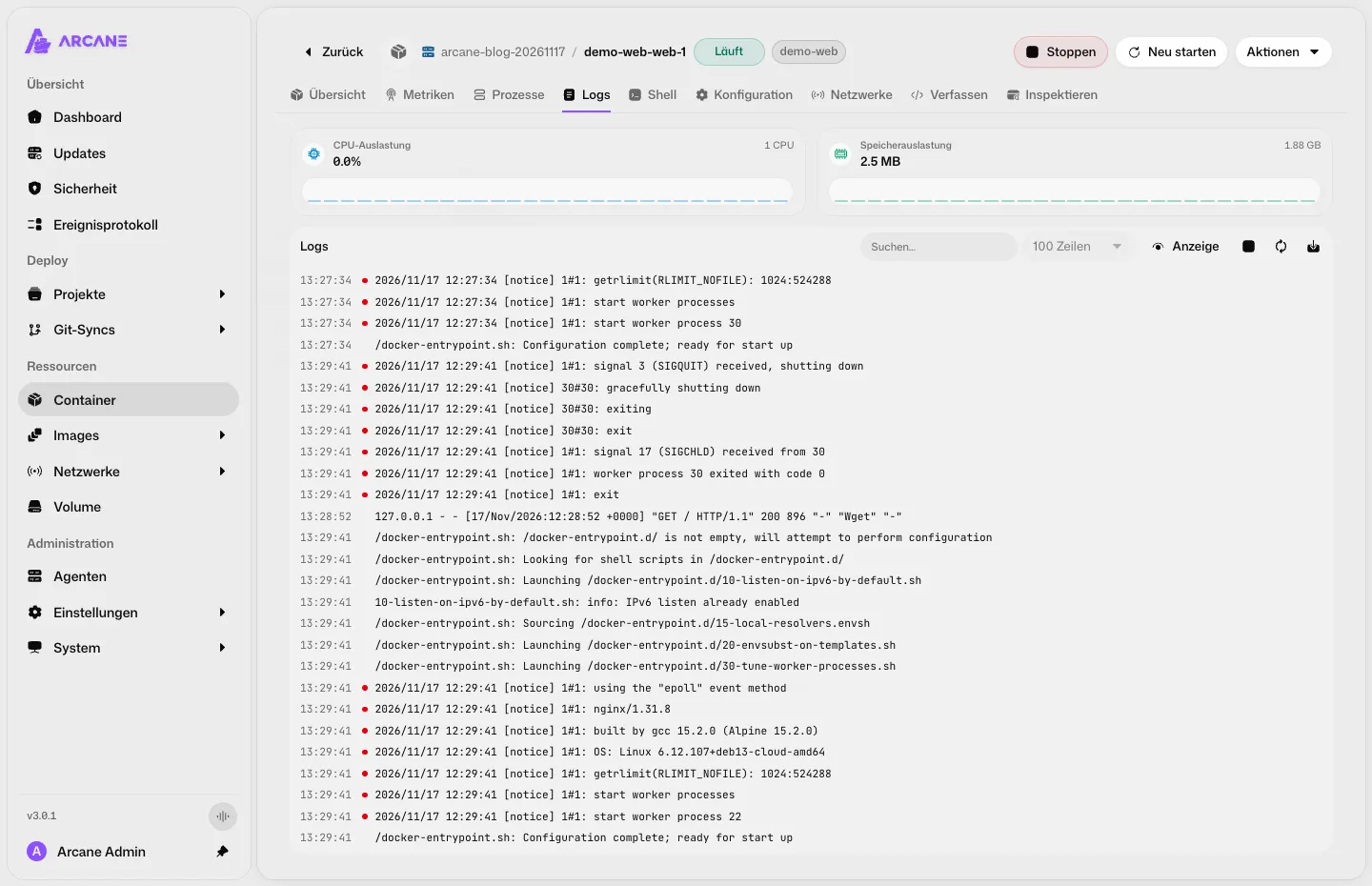
During a restart, you can watch Nginx shut down its old workers and start new ones. If a service stops responding after startup, I check its logs for configuration errors first, then look at resource usage and port mappings. The Shell tab opens a terminal inside the running container, where you can inspect a mounted configuration file. Available shells depend on the image.
For services with a Docker health check, you can enable Auto-Heal. Arcane restarts a container when Docker reports it as unhealthy. You set how often Arcane can try within a given time window.
Check and apply image updates
Images shows the tags and sizes of images stored locally. Updates shows what’s changed for the images your containers use. A moving tag such as nginx:alpine can keep the same name and point to a newer image. Arcane checks the digest, which identifies the specific image build.
Click Update to pull the new image and recreate the affected container. For a stack with pinned versions, I change the tag in compose.yaml and redeploy. That records the new version in the file for the next deployment, including on another host.
Automations lets you schedule update checks and installations separately. Arcane can check daily while you decide when to recreate a database or another important service. If you enable automatic updates, you can exclude specific containers and set a delay after Arcane detects an update.
Inspect, edit, and back up volumes
In Volumes, you can see which Docker volumes are in use and how much space they take up. A volume’s Workspace lets you open, edit, and download text files. The example Nginx container stores its home page in the demo-site volume. Open index.html in the workspace to inspect it while Nginx keeps running.
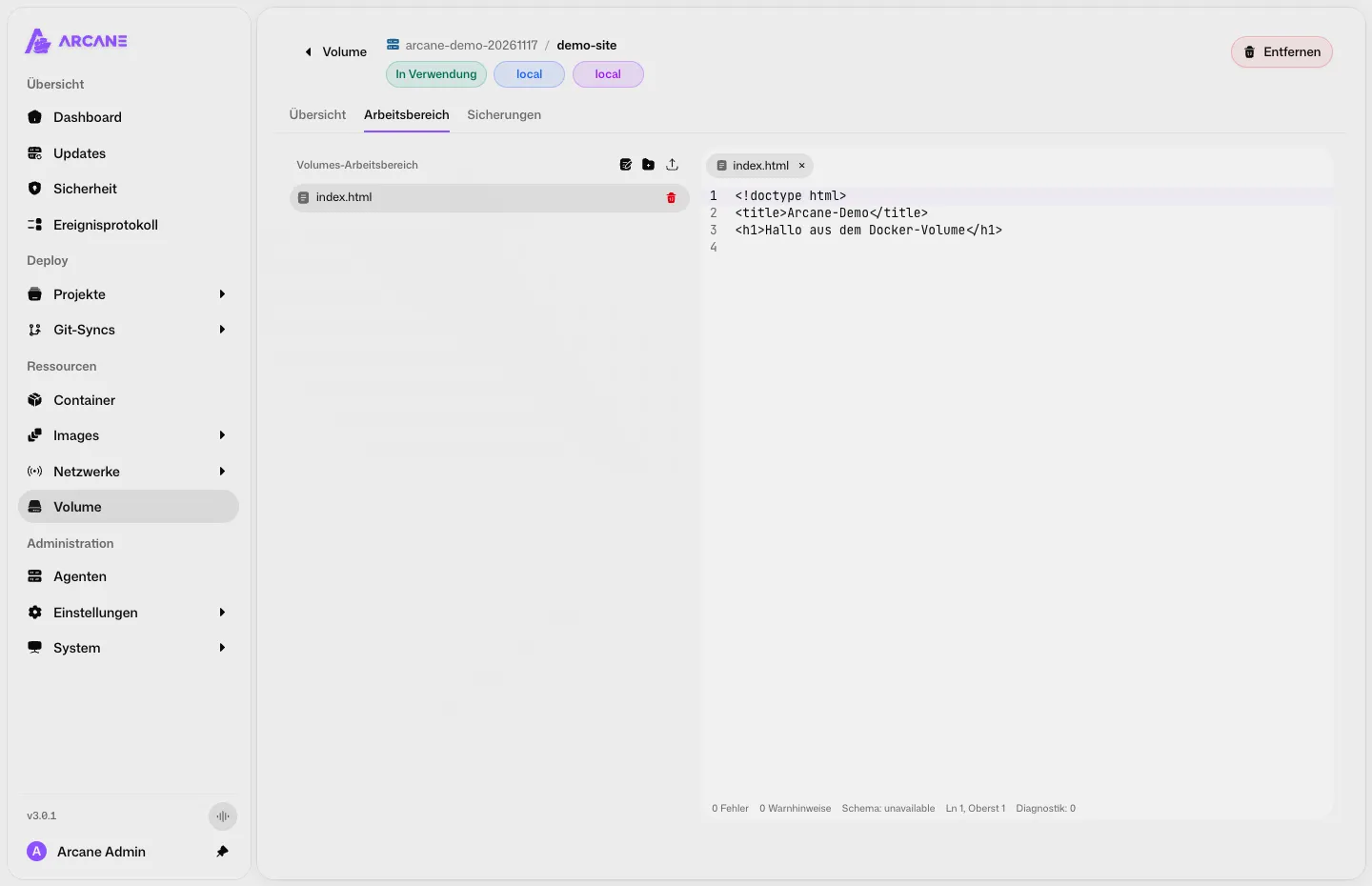
Application data needs its own backup. In a volume’s Backups tab, you can start an encrypted snapshot or schedule recurring snapshots. Arcane supports local and S3-compatible storage. Keep the recovery key separately so you can restore the data. You can recover individual files or replace the entire volume with the contents of a snapshot. The backup documentation also covers backing up Arcane itself.
Deploy Compose projects from Git
Under Git Syncs, connect a repository and choose the branch and path to the Compose file. If your Uptime Kuma project lives at apps/uptime-kuma/compose.yaml, Arcane can deploy that specific stack. If the stack also depends on configuration files, you can sync the entire directory.
| Mode | What Arcane does |
|---|---|
| Pull | Arcane pulls files from Git. You make changes in the repository. A sync can redeploy a running stack. |
| Push | You edit the project in Arcane and let it commit changes to the repository. The commit itself doesn’t restart any containers. |
| Pull and push | Arcane syncs in both directions. |
This method lets you manage configuration and application data separately. Track the Compose file in Git, and keep credentials in your local .env by excluding that file from pushes. Back up databases and uploads using volume snapshots. The Git Sync documentation explains the options for connecting an existing project.
Manage multiple Docker hosts with agents
If you run Docker on a NAS and a VPS, you only need one Arcane Manager. In Agents → Add Agent, generate a configuration with an enrollment token for each host. Use it to start an Arcane agent on the second host. The agent opens an outbound connection to the manager, so it needs no inbound port.
You can then filter containers, projects, and image updates by host. This comes in handy when you run a few small servers with identically named containers and need to be sure which one you’re managing.
Frequently asked questions
Frequently asked questions
Is Arcane free?
Yes. Arcane is open source under the BSD 3-Clause license. You may still pay for the server or storage you use to run it.
Does Arcane detect existing Docker containers?
Yes. Arcane reads the containers on your host through the Docker socket. If you also want to edit their Compose files, mount the project directory in Arcane.
Is Arcane an alternative to Portainer?
Yes, for a Docker home server. Arcane combines a Compose editor, Git Sync, image updates, and volume backups. If you use Portainer with other platforms such as Kubernetes, check their support before switching.