



Install Forgejo: Your Own Git Server with Docker, Actions and Registry
Install Forgejo on a Debian 13 server with Docker and Caddy, host Git repositories, set up an Actions runner and use the built-in Docker registry.
Contents
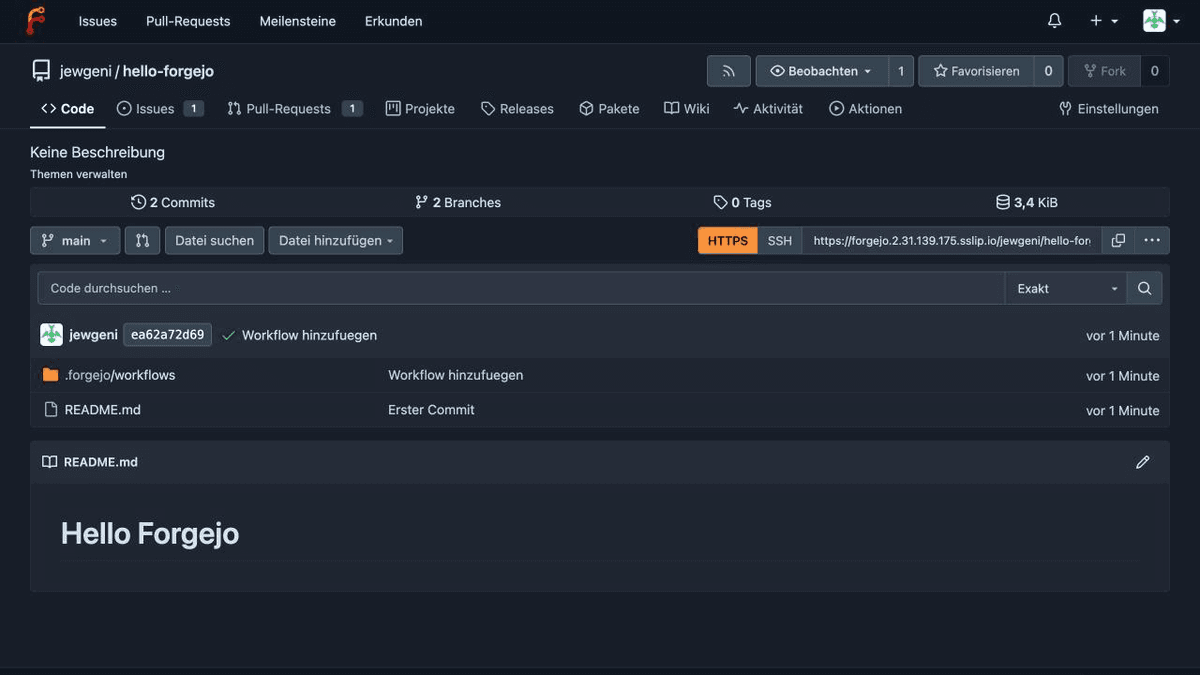
Forgejo 17.0.1Forgejo Runner 13.2.1Caddy 2.11Docker 29.9Debian 13Forgejo is a self-hosted Git service with a web interface. You get repositories, issues, pull requests, a wiki, CI/CD with Forgejo Actions and your own Docker registry, all on a server you control. In this guide I install Forgejo on a Debian server, set up HTTPS with Caddy, connect an Actions runner and finish by building a Docker image that lands directly in your own registry.
What is Forgejo?
Forgejo started in 2022 as a fork of Gitea and is run by a community around the non-profit Codeberg e.V. If you already know my guide to Gitea, you will find your way around quickly: the interface and many settings are similar. A few differences are the image codeberg.org/forgejo/forgejo and the command forgejo instead of gitea inside the container.
Forgejo does all of this without extra software:
- Git repositories over HTTPS and SSH
- Issues, pull requests, milestones, projects (Kanban) and a wiki
- Forgejo Actions for CI/CD, largely compatible with GitHub Actions
- A package registry with container registry, npm, PyPI, Maven and many more formats
- Migration from GitHub, GitLab, Gitea and other services
- Repository mirrors in both directions
Glossary
| Term | Description |
|---|---|
| Forgejo | The Git service with a web interface that we install. |
| Forgejo Runner | A separate program that executes workflow jobs. Forgejo itself does not run jobs. |
| Actions | Forgejo’s CI/CD system. Workflows are YAML files in the folder .forgejo/workflows. |
| Registry | A store for Docker images. The Forgejo registry is part of the package management. |
| Caddy | A web server that works as a reverse proxy and obtains HTTPS certificates automatically. |
| DinD | Docker-in-Docker: a separate Docker daemon in a container that the runner uses for jobs that need Docker. |
Prerequisites
- A server with Debian 13. I used a VPS from Netcup with 2 vCPU and 4 GB RAM (affiliate coupon: as a new customer you get €5 off with the coupon
36nc16172088180, and I get 10% commission). After the installation, including runner and Caddy, the system used just under 900 MB RAM. 2 GB is enough for Forgejo alone, but with Actions and Docker builds more headroom is nice. - A domain or subdomain whose A record points to your server’s IP. I use
{{domain}}here. - Open ports: 80 and 443 for Caddy and 2222 for Git over SSH. The server’s own SSH port (22) stays free for your administration.
Check beforehand that the DNS record is correct:
dig +short {{domain}}The output must be your server’s IP. If you have no SSH basics yet, my post on VPS basics helps.
Step 1: Install Docker
After logging in as root, I update the system and install Docker with the official script:
apt update && apt upgrade -y
apt install -y ca-certificates curl dnsutils git
curl -fsSL https://get.docker.com | sh
To check:
docker --version
docker compose versionDocker version 29.9.3, build 5457199
Docker Compose version v5.7.0If you prefer to add the package source by hand, the steps for Debian are in the Docker documentation.
Step 2: Start Forgejo and Caddy with Docker Compose
We create a directory. The folder forgejo gets user ID 1000 so the container can write to it.
mkdir -p /opt/forgejo/forgejo /opt/forgejo/caddy_data /opt/forgejo/caddy_config
cd /opt/forgejo
chown 1000:1000 forgejo
Then the compose.yaml:
services:
    forgejo:
        image: codeberg.org/forgejo/forgejo:17
        container_name: forgejo
        restart: unless-stopped
        environment:
            - USER_UID=1000
            - USER_GID=1000
            - FORGEJO__server__DOMAIN={{domain}}
            - FORGEJO__server__ROOT_URL=https://{{domain}}/
            - FORGEJO__server__SSH_DOMAIN={{domain}}
            - FORGEJO__server__SSH_PORT=2222
        volumes:
            - ./forgejo:/data
            - /etc/localtime:/etc/localtime:ro
        ports:
            - "2222:22"

    caddy:
        image: caddy:2
        container_name: caddy
        restart: unless-stopped
        ports:
            - "80:80"
            - "443:443"
        volumes:
            - ./Caddyfile:/etc/caddy/Caddyfile:ro
            - ./caddy_data:/data
            - ./caddy_config:/config
A few notes on this:
:17is the major version. The tag follows updates within 17.x.x but does not jump to 18 on its own. You switch to the next major version deliberately, after reading the release notes. If you want less update effort, use the LTS branch (currently:15, supported until July 2027 according to the release plan). Version 17 reaches end of life at the end of January 2027 according to the plan.- The
FORGEJO__…variables pre-fill the installer later. The scheme isFORGEJO__SECTION__KEYand matches the entries inapp.ini. - Port 2222:22 publishes the container’s SSH server on port 2222 of the host. The web port 3000 stays internal; Caddy talks to Forgejo over the Docker network.
The Caddyfile is short:
{{domain}} {
    reverse_proxy forgejo:3000
}
Start it:
docker compose up -d
docker compose psNAME IMAGE COMMAND SERVICE CREATED STATUS PORTS
caddy caddy:2 "caddy run --config …" caddy 1 second ago Up Less than a second 0.0.0.0:80->80/tcp, [::]:80->80/tcp, 0.0.0.0:443->443/tcp, [::]:443->443/tcp, 443/udp, 2019/tcp
forgejo codeberg.org/forgejo/forgejo:17 "/usr/bin/entrypoint…" forgejo 1 second ago Up Less than a second 3000/tcp, 0.0.0.0:2222->22/tcp, [::]:2222->22/tcpYou can see which version runs inside the container:
docker compose exec forgejo forgejo --versionforgejo version 17.0.1+gitea-1.22.0 (release name 17.0.1) built with GNU Make 4.4.1, go1.26.10 : bindata, timetzdata, sqlite, sqlite_unlock_notifyCaddy fetches the certificate from Let’s Encrypt on its own at the first request. In my run it was there after a few seconds. The Caddy log then shows certificate obtained successfully.
Step 3: Run the installer in the browser
Open https://{{domain}}. Forgejo shows the installer until you complete it.
Right after the start, requests from bots looking for files like
/.envand/.git/configshowed up in Forgejo’s log. The installer is reachable by anyone until you finish it. So complete it immediately afterdocker compose up -dand do not leave the page open for hours.
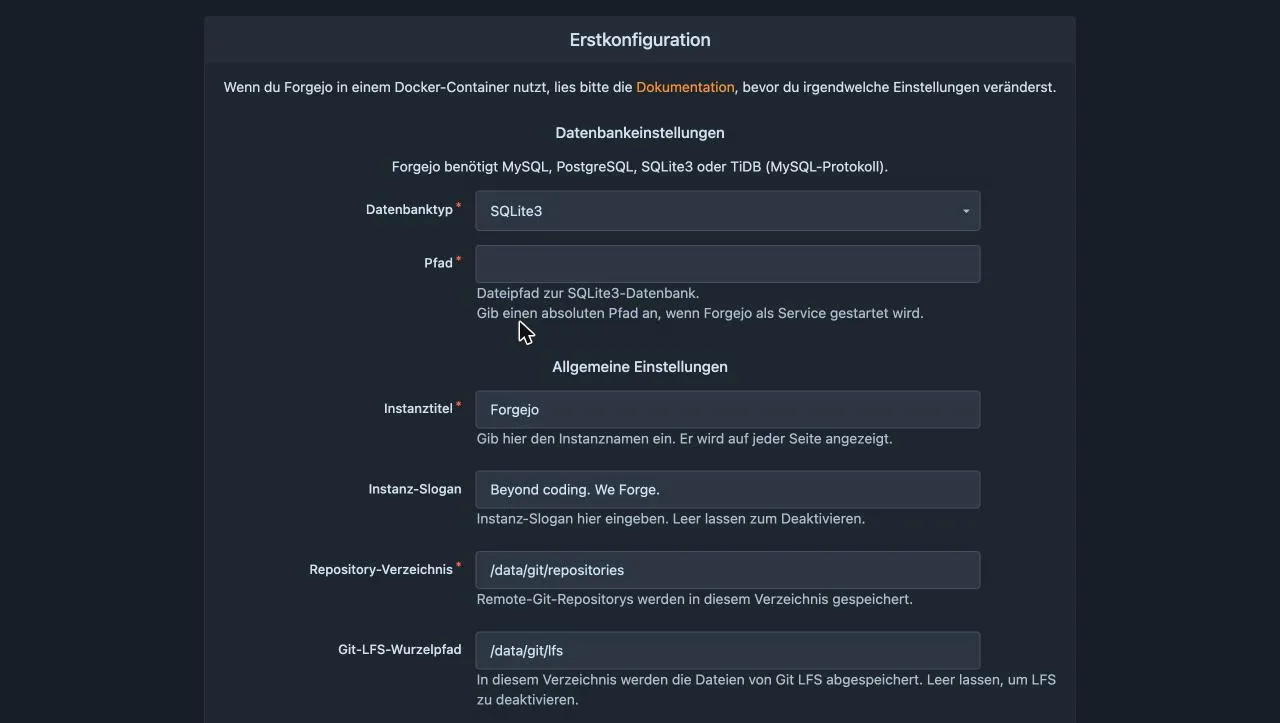
The domain, the base URL and the SSH port are already filled in through the environment variables. You have to step in at these points:
- Database type: The installer starts with MySQL. Choose SQLite3. That is plenty for private use and small teams. If you expect more load, use PostgreSQL as described in the Forgejo database docs.
- Path: After switching to SQLite3 the field is empty even though it is required. Enter
/data/gitea/forgejo.db. The folder/data/giteais still called that in Forgejo. - Administrator account: At the bottom, open the block “Administrator Account Settings” and set a username, email and password. This is not optional as long as “Disable self-registration” is active. Without an admin account the installer aborts with the message “You cannot disable self-registration without creating an administrator account.” (shown in German in my screenshot). Keep registration disabled, otherwise anyone can create an account on your server.
One click on “Install Forgejo” and after a few seconds you are logged in.
Everything else you set here ends up in /data/gitea/conf/app.ini inside the container, which is /opt/forgejo/forgejo/gitea/conf/app.ini on the server. With the FORGEJO__… variables in the compose.yaml you can override any value later.
Step 4: The first repository and SSH
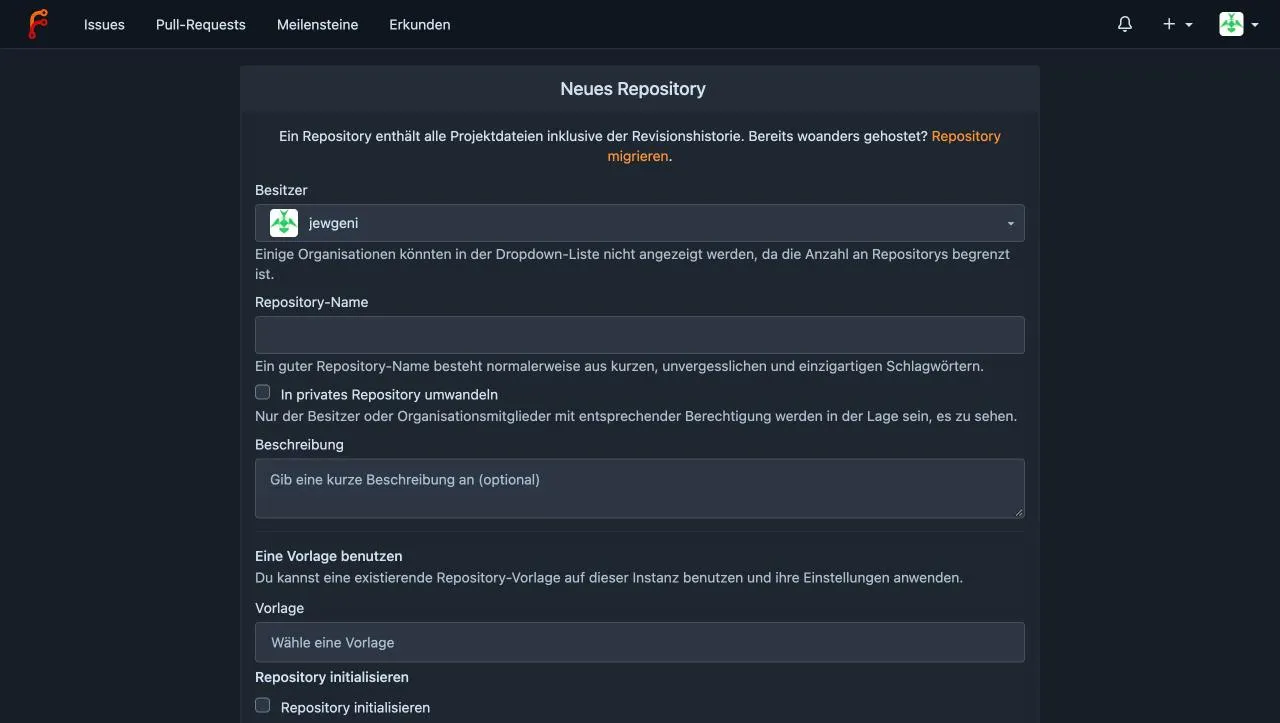
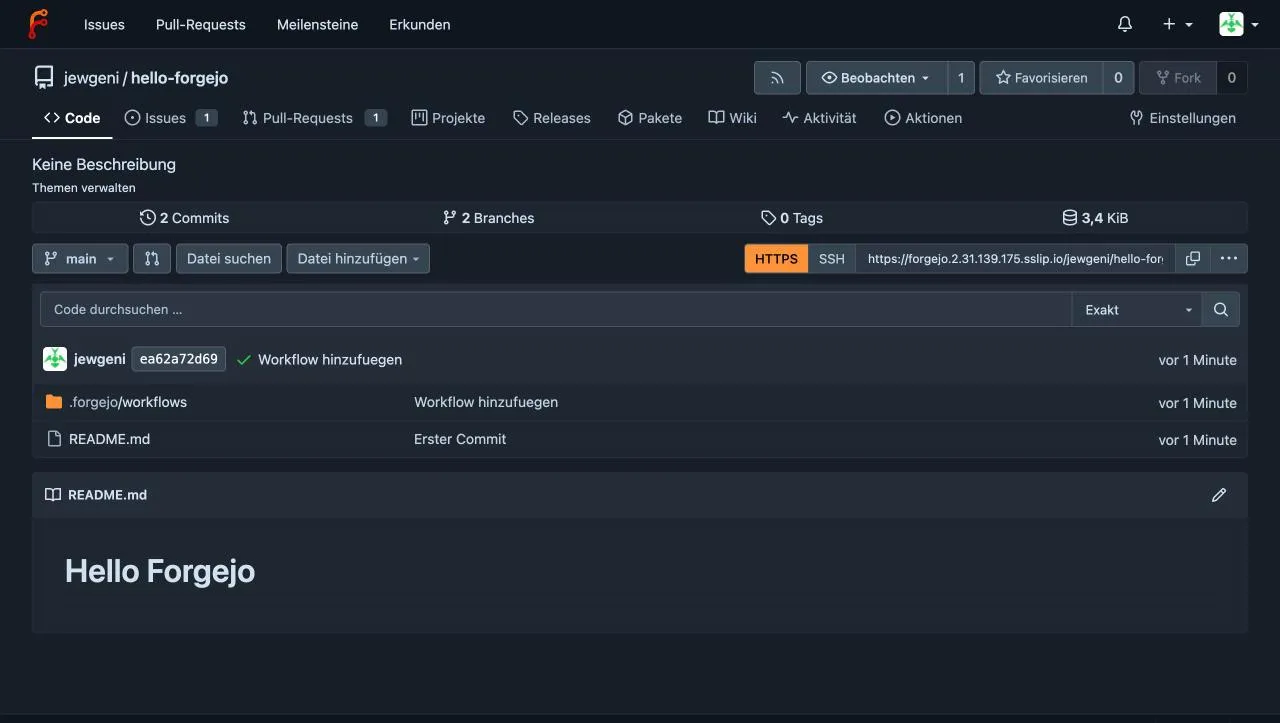
You create a new repository with the plus menu at the top right. If you already have projects elsewhere, also look at the migration section further down.
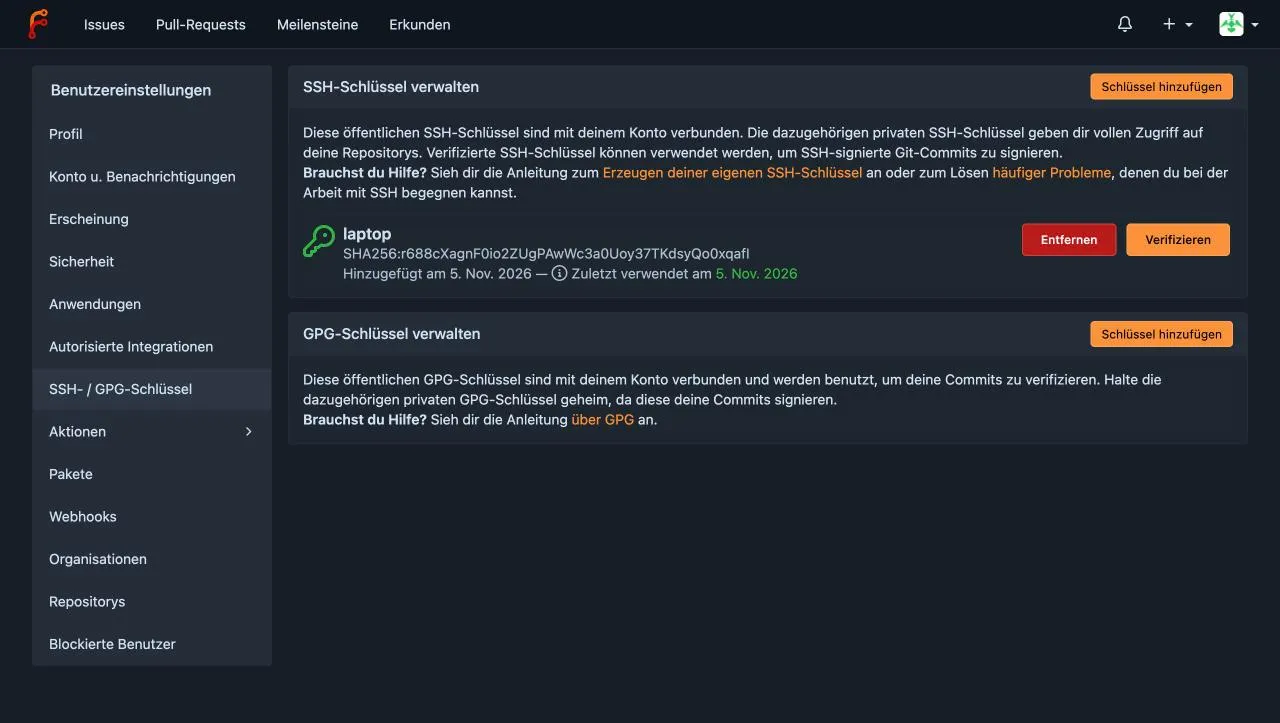
For Git over SSH you need a public key in the settings under “SSH / GPG Keys”. If you do not have one yet, create it on your machine with ssh-keygen -t ed25519. Paste the content of the file ~/.ssh/id_ed25519.pub under “Add key”.
Because the container’s SSH server runs on port 2222, the clone URL has to contain the port. Forgejo shows it the way it is needed:
mkdir hello-forgejo && cd hello-forgejo
git init -b main
echo "# Hello Forgejo" > README.md
git add . && git commit -m "First commit"
git remote add origin ssh://git@{{domain}}:2222/jewgeni/hello-forgejo.git
git push -u origin mainWarning: Permanently added '[{{domain}}]:2222' (ED25519) to the list of known hosts.
To ssh://{{domain}}:2222/jewgeni/hello-forgejo.git
* [new branch] main -> main
branch 'main' set up to track 'origin/main'.Replace jewgeni with your username. If you want to skip typing the port, add the host with Port 2222 to your ~/.ssh/config.
Issues and pull requests
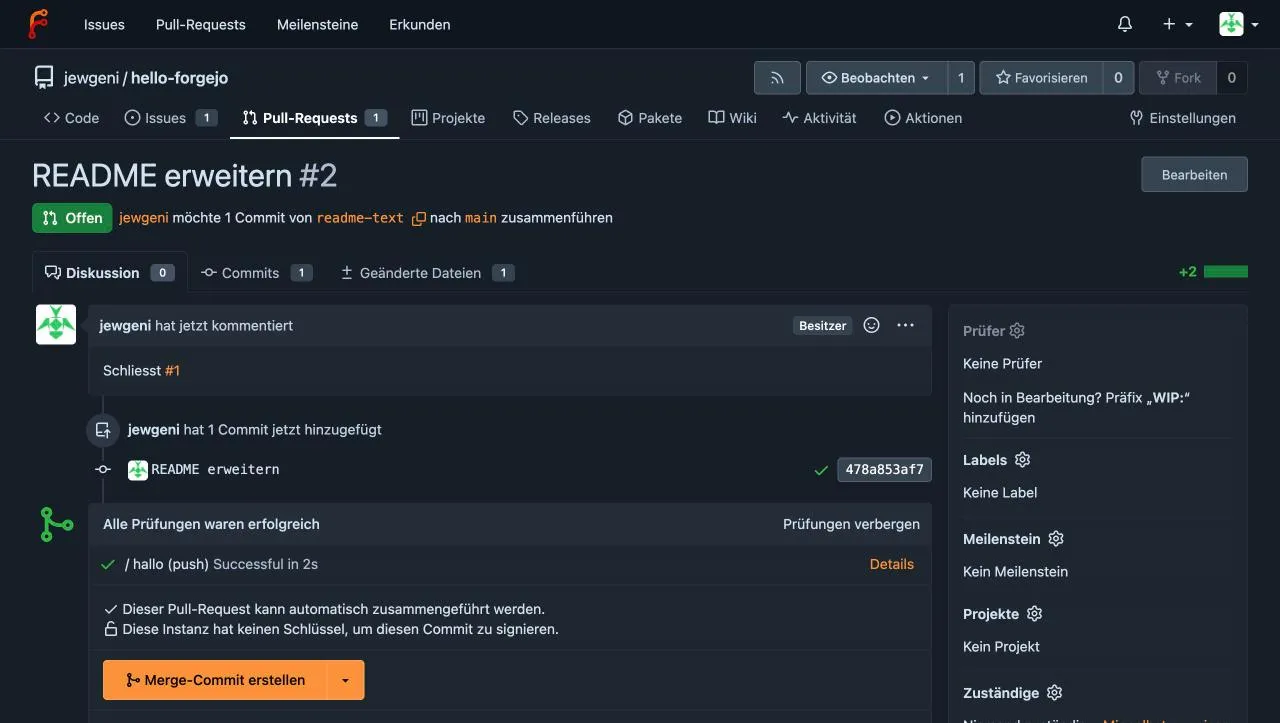
The usual workflow works like on GitHub. I created an issue “Expand README”, pushed a branch and opened a pull request with “Closes #1” in the text. Forgejo links the number automatically. Below the pull request you later also see the status of the Actions jobs.
Step 5: Forgejo Actions with your own runner
Forgejo does not run workflows itself. For that there is the Forgejo Runner, which you operate on the same or on another server. I run it here on the same server, in a separate Compose project.
For security reasons a runner really belongs on its own machine, because it executes code from your repositories. On a private server with you as the only user this is acceptable. More on this is in the docs on Securing Forgejo Actions Deployments.
Register the runner
The runner needs a UUID and a token from Forgejo. There are several ways. I use registration on the command line because it is easy to copy. First we generate a secret of 40 hex characters and register a global runner with it:
mkdir -p /opt/runner/data/.cache
cd /opt/forgejo
SECRET=$(openssl rand -hex 20)
echo $SECRET > /opt/runner/secret.txt
docker compose exec -u git forgejo forgejo forgejo-cli actions register \
--name runner-1 --scope "" --secret $SECRET31656461-6665-3261-3866-393661366365This is the runner’s UUID. The parameter -u git matters: without it the command runs as root in the container and does not find the configuration.
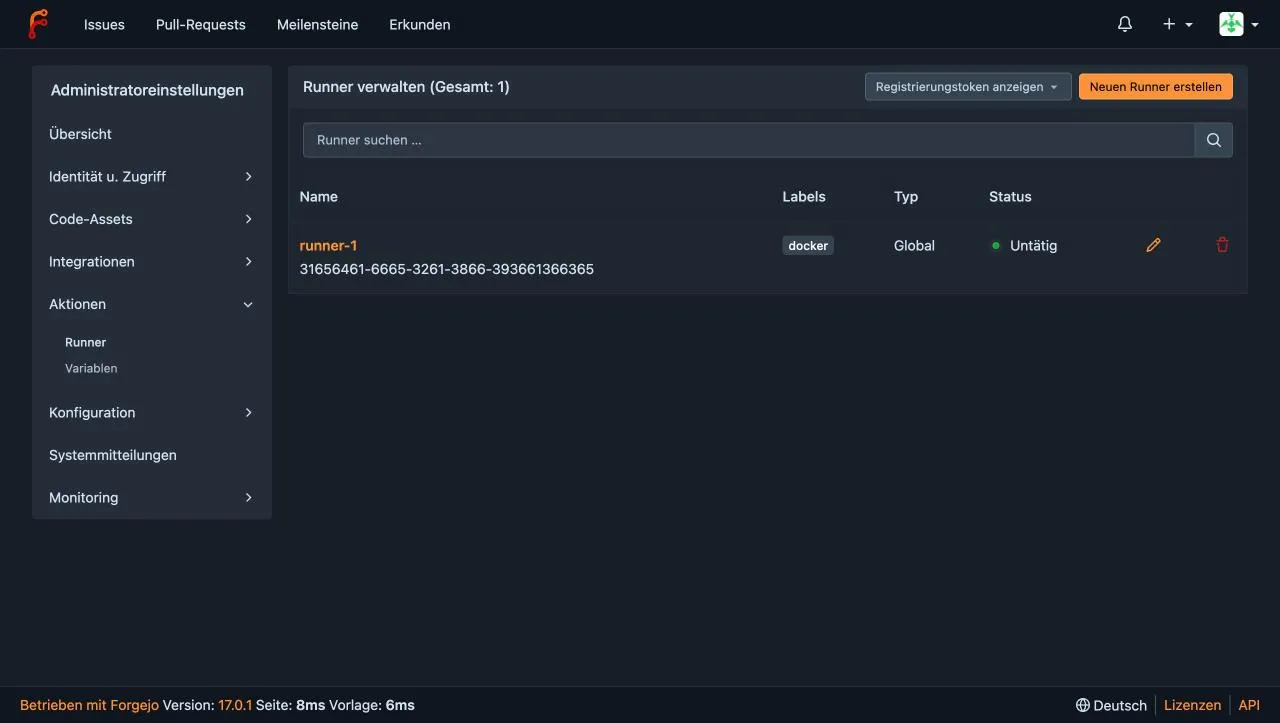
Alternatively you can create the runner in the web interface under Administration → Actions → Runners and copy the UUID and token from there.
Start the runner
The file /opt/runner/compose.yaml:
services:
    docker-in-docker:
        image: docker:dind
        container_name: docker_dind
        privileged: true
        command: ["dockerd", "-H", "tcp://0.0.0.0:2375", "--tls=false"]
        restart: unless-stopped

    runner:
        image: data.forgejo.org/forgejo/runner:13
        container_name: runner
        depends_on:
            - docker-in-docker
        environment:
            DOCKER_HOST: tcp://docker-in-docker:2375
        user: 1001:1001
        volumes:
            - ./data:/data
        restart: unless-stopped
        command: forgejo-runner daemon --config /data/runner-config.yml
The runner does not run as root but with ID 1001. The data folder has to belong to it. Then we generate the default configuration:
cd /opt/runner
chown -R 1001:1001 data
docker run --rm data.forgejo.org/forgejo/runner:13 \
  forgejo-runner generate-config > data/runner-config.yml
In data/runner-config.yml you change three places. First the labels. A label connects the name from runs-on: in the workflow to a container image:
runner:
    labels: ["docker:docker://node:22-trixie"]
Then the connection to your Forgejo, with the UUID from the previous step and the content of secret.txt as the token:
server:
    connections:
        forgejo:
            url: https://{{domain}}/
            uuid: 31656461-6665-3261-3866-393661366365
            token: YOUR-SECRET-FROM-SECRET.TXT
Last, the Docker access for the jobs, which we need for the image build in step 6. Without these entries the job containers do not see the Docker daemon. They point to the DinD container, not to the server’s Docker:
runner:
    envs:
        DOCKER_HOST: tcp://dind_container.docker.internal:2375

container:
    options: "--add-host=dind_container.docker.internal:host-gateway"
    docker_host: "tcp://docker-in-docker:2375"
The keys envs, options and docker_host already exist in the generated file at the right place, usually empty or with example values. Replace them there instead of creating sections twice. The concept comes from the docs Utilizing Docker within Actions.
Start it and look at the log:
docker compose up -d
docker compose logs runnerrunner | level=info msg="Starting runner daemon"
runner | Error: cannot ping the docker daemon. is it running? Cannot connect to the Docker daemon at tcp://docker-in-docker:2375. Is the docker daemon running?
runner | level=info msg="Starting runner daemon"
runner | level=info msg="runner: runner-1, with version: v13.2.1, with labels: [docker], ephemeral: false, declared successfully"
runner | level=info msg="[poller] launched"The error at the beginning is normal. The runner starts slightly earlier than the Docker daemon in the DinD container and keeps trying until the connection is up. In my run that took about two seconds.
In the administration settings under Actions → Runners you now see runner-1 with the status “Idle”.
The first workflow
In the repository you create the file .forgejo/workflows/test.yaml:
on: [push]

jobs:
    hello:
        runs-on: docker
        steps:
            - uses: actions/checkout@v4
            - name: Say hello
              run: |
                  echo "Hello from Forgejo Actions"
                  node --version
                  ls -la
runs-on: docker matches the label from the runner configuration. The action actions/checkout@v4 without a full URL is loaded by Forgejo from data.forgejo.org, a mirror of well-known actions under free licenses. The workflow starts after git push.
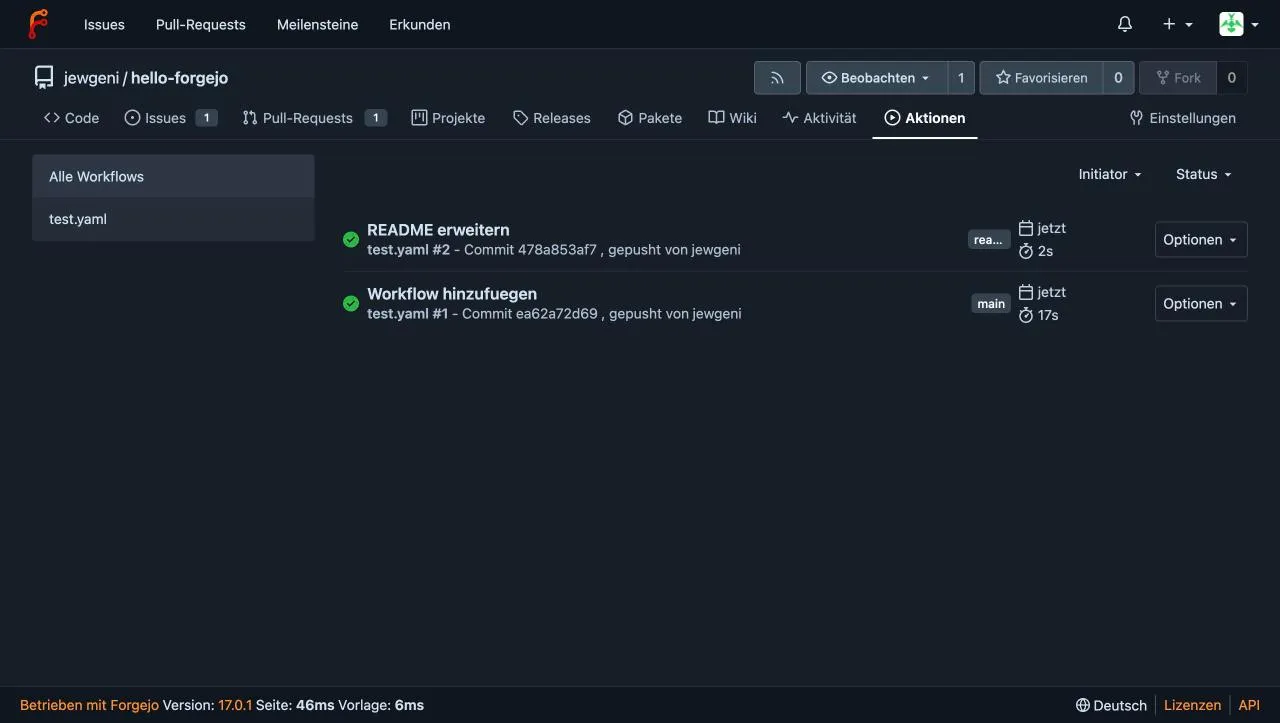
In the detail view you see every step with its output:
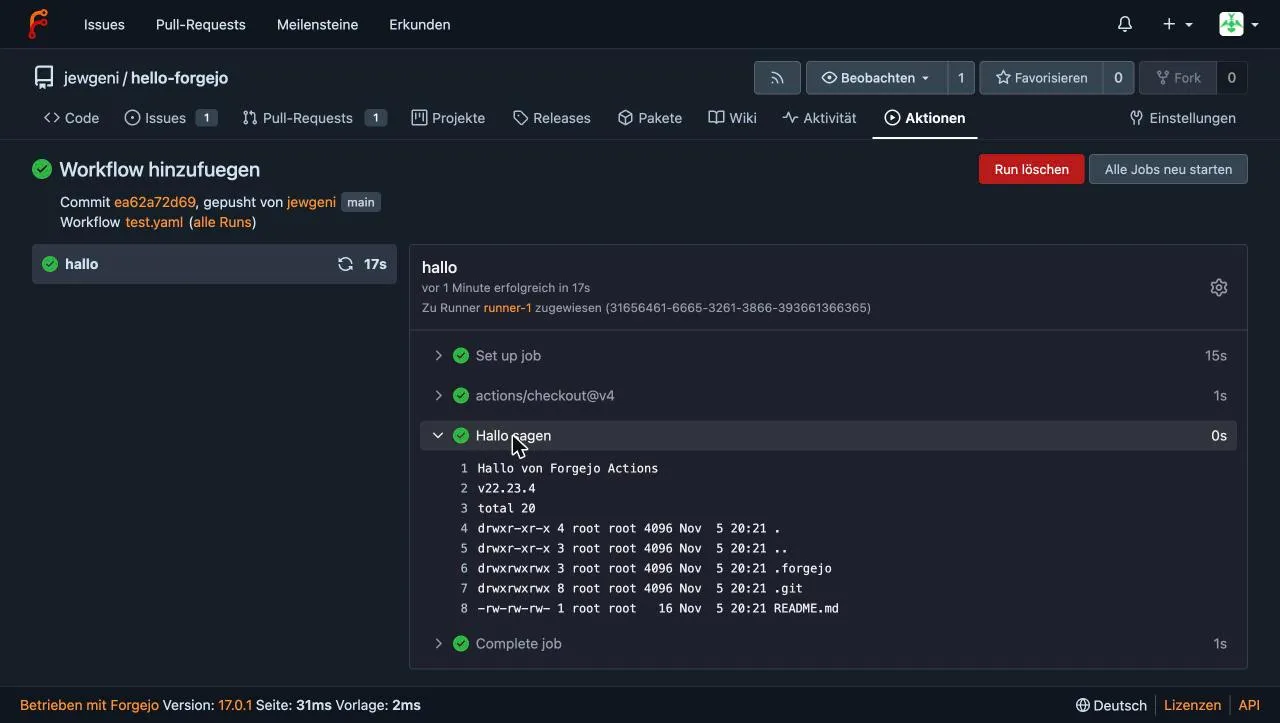
The first run takes longer because the runner has to download the image node:22-trixie. In my test it took 17 seconds, later runs took two.
Secrets, variables and manual starts
Passwords and tokens do not belong in the workflow. You create them in the repository settings under Actions → Secrets. Values that are not secret go under Variables. A workflow can also run by hand and on a schedule:
on:
    workflow_dispatch:
    schedule:
        - cron: "0 6 * * *"

jobs:
    secrets-test:
        runs-on: docker
        steps:
            - name: Use variable and secret
              env:
                  MY_SECRET: ${{ secrets.MY_SECRET }}
              run: |
                  echo "Variable: ${{ vars.GREETING }}"
                  echo "Secret has ${#MY_SECRET} characters"
echo "Secret value: $MY_SECRET"Variable: Moin
Secret has 9 characters
Secret value: ***Forgejo masks secrets in the log. Only *** is printed. On my first attempt I had the expression ${{ secrets.MY_SECRET != "" }} in the run block, and the job failed without a useful message. So pass secrets on as an environment variable, as above.
One naming rule: secret names must not start with FORGEJO_, GITEA_, GITHUB_ or a digit. With FORGEJO_TOKEN the API answered invalid secret name. That is why I call my secret REGISTRY_TOKEN.
Step 6: Use the built-in Docker registry
Every Forgejo instance comes with a container registry. You need no extra service and no separate configuration. The registry lives under the same domain as Forgejo, and Caddy forwards the requests like everything else.
Log in, push, pull
The image name follows the scheme {domain}/{owner}/{image}:{tag}. To log in you need an access token. Create it in the user settings under “Applications” and give it read and write permissions for packages. You should not use your account password here; with two-factor authentication enabled it does not work anyway.
echo "YOUR-TOKEN" | docker login {{domain}} -u jewgeni --password-stdin
docker tag alpine:3.22 {{domain}}/jewgeni/alpine:test
docker push {{domain}}/jewgeni/alpine:testLogin Succeeded
Info -> Not all multiplatform-content is present and only the available single-platform image was pushed
sha256:2e0b81d60597f449baa56dc25d355367869d2dca4cd57e866f1e2b52af3eb55f -> sha256:dc92f017beea8e7f43263073d717f7bc011228c95d5312e440deb4d035bb4eecThe info line appears because Docker with the containerd image store only pushes the platform that exists locally. In everyday use this is harmless.
The image shows up in your profile under “Packages”:
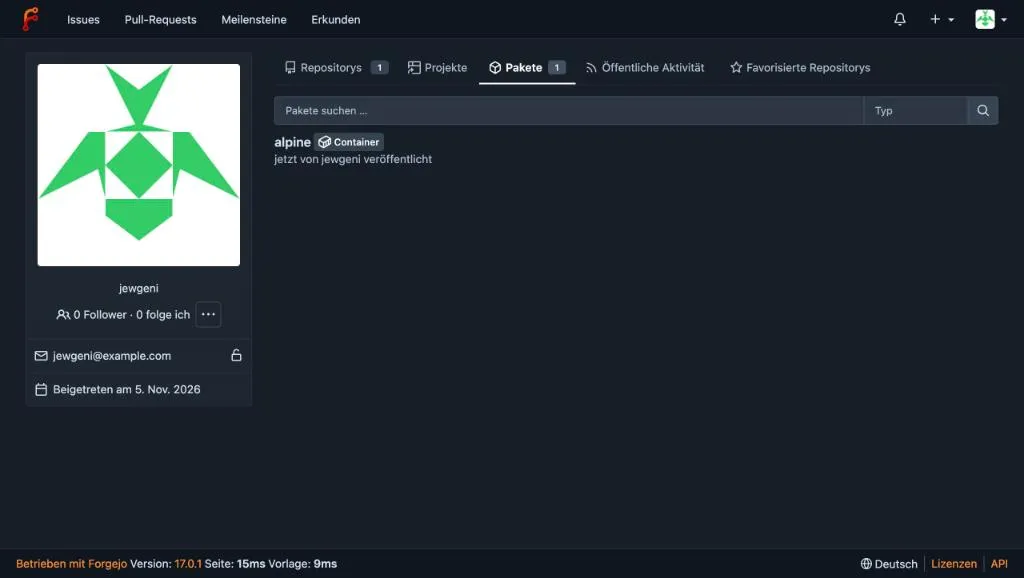
On another server (after logging in) you pull it like this:
docker pull {{domain}}/jewgeni/alpine:testLink the image name to a repository
If the image name matches the name of a repository, so {{domain}}/jewgeni/hello-forgejo, Forgejo assigns the package to that repository automatically on the first push. It then appears in the repository’s “Packages” tab. Alternatively you set the label org.opencontainers.image.source with the repository URL in the Dockerfile.
Build and push images automatically
Now we connect Actions and the registry. The repository contains a Dockerfile and an index.html:
FROM nginx:alpine
COPY index.html /usr/share/nginx/html/index.html
The workflow .forgejo/workflows/docker.yaml builds the image on every push to main and uploads it:
on:
    push:
        branches: [main]

jobs:
    image:
        runs-on: docker
        steps:
            - uses: actions/checkout@v4
            - name: Install Docker CLI
              run: apt-get update -qq && apt-get install -y -qq docker-cli > /dev/null
            - name: Log in to the registry
              run: echo "${{ secrets.REGISTRY_TOKEN }}" | docker login {{domain}} -u ${{ github.actor }} --password-stdin
            - name: Build and push image
              run: |
                  docker build -t {{domain}}/${{ github.repository }}:latest .
                  docker push {{domain}}/${{ github.repository }}:latest
In the repository settings you add the secret REGISTRY_TOKEN with the token from the previous section. The node image contains no Docker CLI, so the second step installs the package docker-cli (available in Debian 13, hence the label with trixie; I did not test this with bookworm images). The daemon is provided by the DinD container we configured in step 5.
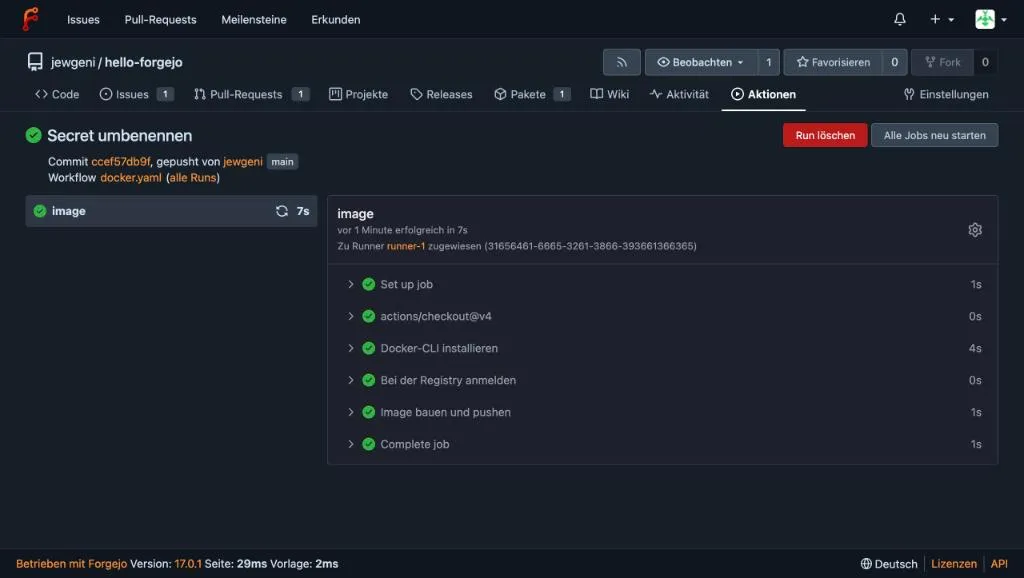
The run took seven seconds. Afterwards the image appears right at the repository and in the package list.
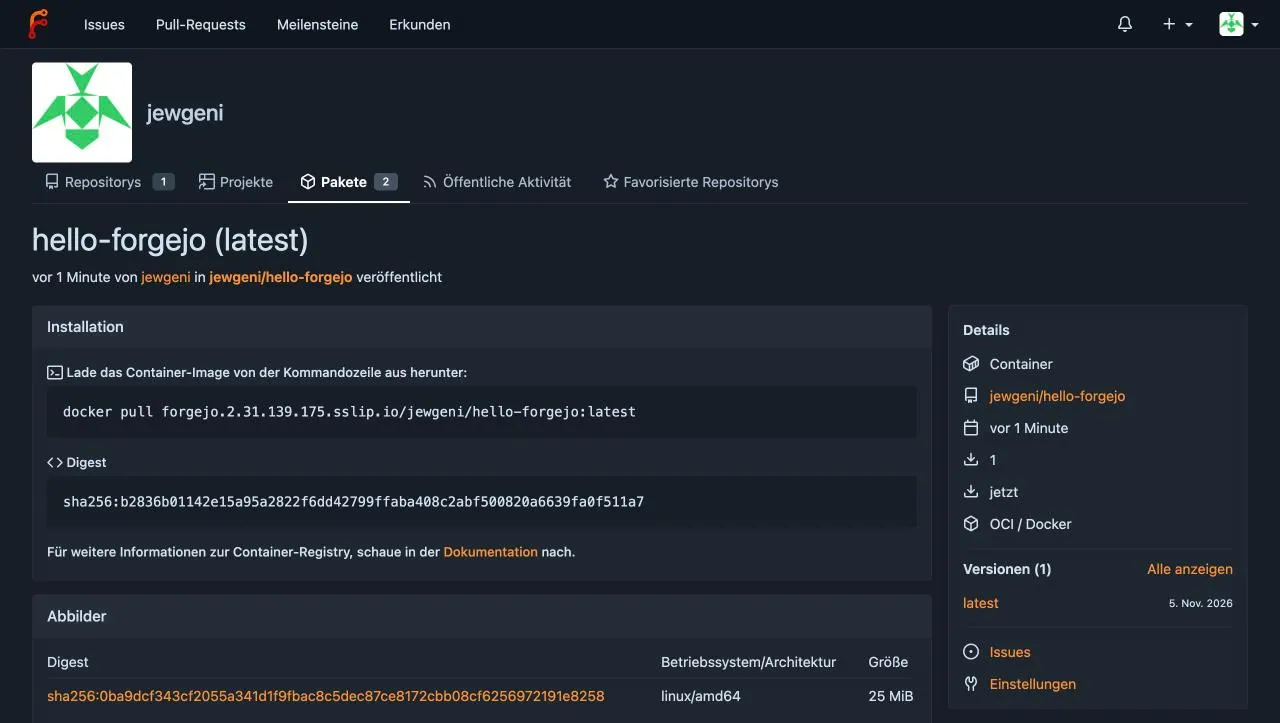
As a test I deleted the local image, pulled it again and started it:
docker rmi {{domain}}/jewgeni/hello-forgejo:latest
docker pull {{domain}}/jewgeni/hello-forgejo:latest
docker run -d --rm --name hello -p 8081:80 {{domain}}/jewgeni/hello-forgejo:latest
curl localhost:8081<h1>Hallo aus meiner eigenen Registry</h1>In a Compose file, image: simply points to the full name including the domain. On the server that pulls the image you have to run docker login once if the package is not public.
Visibility: when are images private?
This is the most important trap with the registry. A package’s visibility does not depend on the repository but on the owner. I set my repository to “private” and then pulled the image without logging in. It still came through, because my user account was public.
Only after I set the account’s visibility to “private” did I get the expected answer:
Error response from daemon: failed to resolve reference "{{domain}}/jewgeni/hello-forgejo:latest": pull access denied, repository does not exist or may require authorization: authorization failed: no basic auth credentialsYou find the setting under User settings → Profile as “Profile visibility”. In my test I set it through the admin API, not in the form. For organizations the same applies to the organization. Check this before you put internal images into the registry, and test with docker logout and a fresh pull whether they are really protected.
More features worth a look
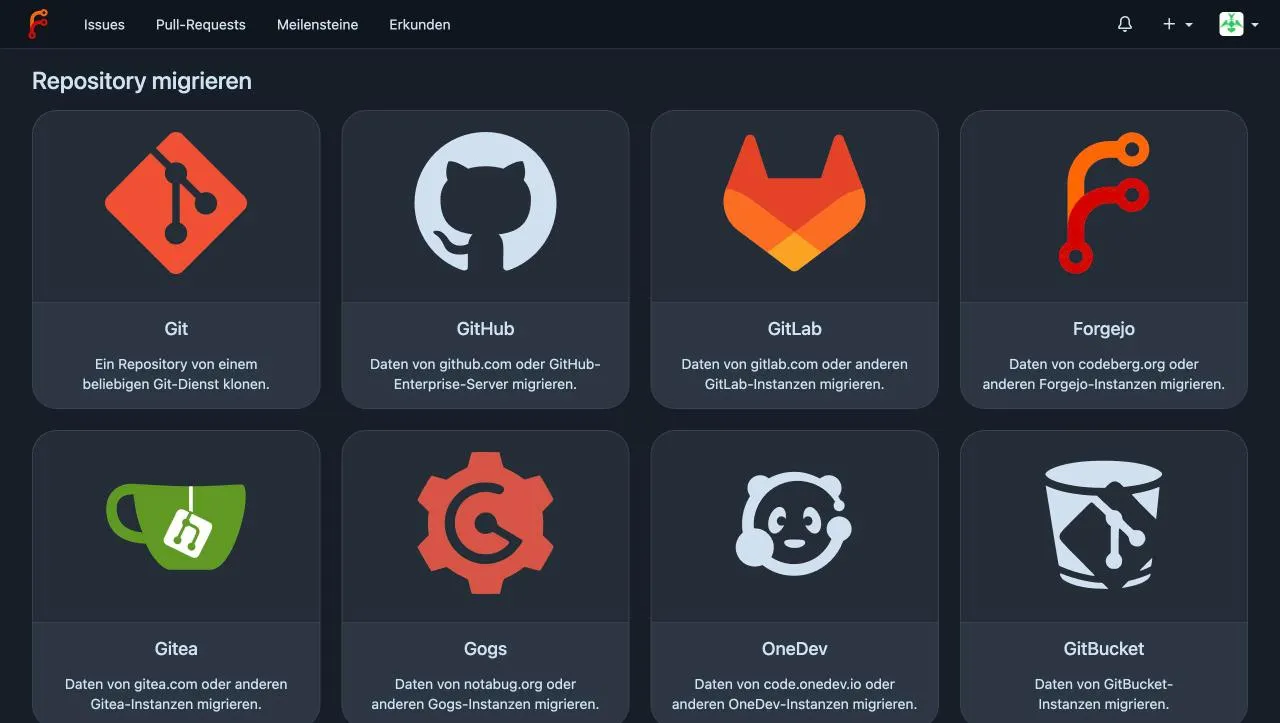
- Migration: Under “New migration” Forgejo fetches repositories from GitHub, GitLab, Gitea, Gogs, OneDev, GitBucket and other Forgejo instances. Depending on the source, issues, pull requests, wiki and releases come along. For private sources you need an access token.
- Mirrors: A repository can update itself regularly from another source (pull mirror) or push changes to GitHub (push mirror). This works as a backup or a second copy.
- Wiki, projects, milestones, releases: Every repository includes them. Projects work as a Kanban board.
- Webhooks: Forgejo calls a URL on events, for example for notifications.
- Two-factor authentication: Enable it in the user settings under “Security”. It is worth it on any server reachable from the internet.
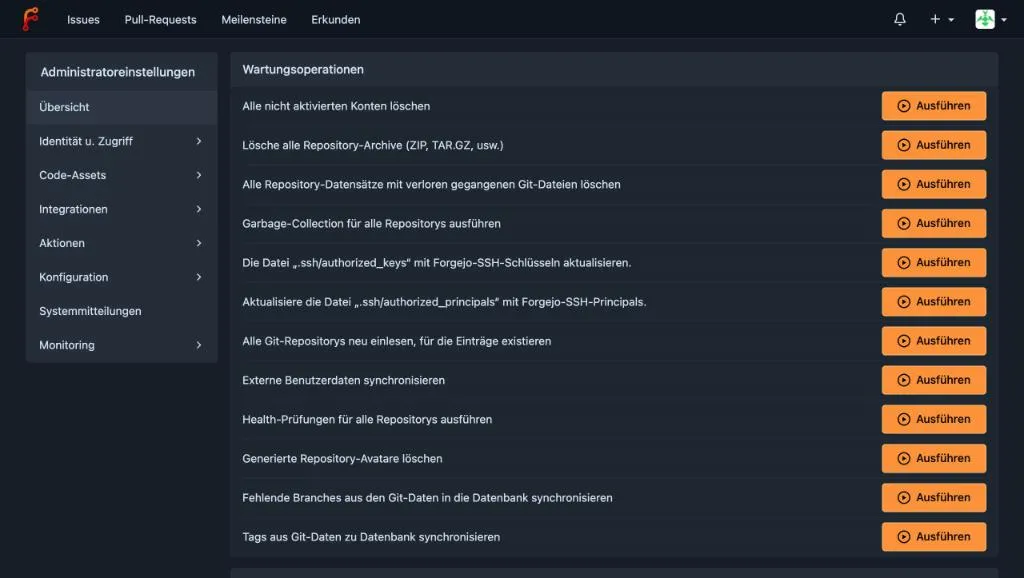
In the administration area you also find maintenance tasks like garbage collection for repositories and user management.
Backup
All data lives in the folder /opt/forgejo/forgejo. For a consistent archive Forgejo ships the command dump:
cd /opt/forgejo
docker compose exec -u git forgejo forgejo dump --file /data/backup.zip
ls -la forgejo/backup.zipcmd/dump.go:520:dumpDatabase() [I] Dumping database...
cmd/dump.go:336:func1() [I] Adding custom configuration file from /data/gitea/conf/app.ini
cmd/dump.go:476:dumpCustom() [I] Custom dir /data/gitea is inside data dir /data/gitea, skipping
cmd/dump.go:424:runDump() [I] Finished dumping in file /data/backup.zip
-rw------- 1 1000 1000 4058950 Nov 5 20:22 forgejo/backup.zipIn my test the archive of just under 4 MB contained the database, the repositories and the configuration. Copy it to another machine regularly, because a backup on the same server does not protect you from a server failure. The restore steps are in the Forgejo backup documentation. Also back up the folder /opt/runner and the contents of caddy_data if you do not want to wait for new certificates.
Update Forgejo
Within the major version this is enough:
cd /opt/forgejo
docker compose pull
docker compose up -d
For a jump to the next major version (from 17 to 18), change the tag in the compose.yaml, read the release notes and the upgrade guide first, and make a backup beforehand. You keep the runner current by raising its tag :13 the same way.
Problems and solutions
| Problem | Cause and solution |
|---|---|
| Installer: “You cannot disable self-registration …” | No administrator account given. Fill in the block “Administrator Account Settings”. |
| Installer: SQLite file path missing | Enter /data/gitea/forgejo.db. |
forgejo command in the container finds no configuration |
Run it with -u git: docker compose exec -u git forgejo forgejo … |
| Runner restarts in a loop | Normal at first, while the DinD container is not ready. If it continues, check DOCKER_HOST in the Compose file. |
Cannot connect to the Docker daemon in a workflow |
The entries envs, options and docker_host in the runner configuration are missing or wrong. |
invalid secret name |
Secret names must not start with FORGEJO_. |
| Git push over SSH fails | Port 2222 forgotten in the clone URL or not opened in the firewall. |
| Image can be pulled without login although the repo is private | The owner account’s visibility is public. Set the account or organization to “private”. |
Conclusion
Forgejo installs quickly, and beginners can make sense of the web interface fast. The real gain over a plain Git server comes with Actions and the registry: a push starts the build, the finished image sits in the same instance and can be pulled to any server with a docker pull. The things that matter are the visibility of packages, a backup outside the server and a runner.
Do you already run your own Git server, and which features do you use? Feel free to tell me in the comments.
FAQ
Frequently asked questions
What is the difference between Forgejo and Gitea?
Forgejo started in 2022 as a fork of Gitea and is developed by a community around the association Codeberg e.V. Usage and configuration are very similar. Forgejo has its own release scheme with LTS versions and its own runner for Actions.
How much RAM does Forgejo need?
Forgejo itself runs with 1 to 2 GB. In my test Forgejo, Caddy, the runner and the DinD container together used just under 900 MB on a server with 4 GB RAM. If you build Docker images often, plan for more.
Do I need a domain for Forgejo?
For HTTPS with Caddy, yes. Without a domain you only reach Forgejo by IP and port, and the container registry in practice only works with HTTPS or a matching Docker exception for insecure registries. A subdomain is enough.
Why does Git run on port 2222 instead of 22?
The server's own SSH daemon uses port 22. So Forgejo offers its SSH access in the container on 2222. The clone URL contains the port: ssh://git@your-domain:2222/user/repo.git.
Are Forgejo Actions compatible with GitHub Actions?
Largely. The workflow syntax is similar, but the files live in the folder .forgejo/workflows. Actions without a full URL are loaded from data.forgejo.org. Not every GitHub action works unchanged, especially those that use GitHub-specific interfaces.
Does the runner have to run on the same server?
No. You can run the runner on another machine as long as it can reach the URL of your Forgejo instance. For security reasons a separate machine is even better, because the runner executes code from your repositories.
How do I make images in the registry private?
Visibility follows the owner of the package. If your user account or organization is public, the images are public too, even if the related repository is private. Set the account to private and check with docker logout and a pull that access is denied.
How do I back up Forgejo?
With the command forgejo dump in the container you create an archive of the database, repositories and configuration. Copy it to another machine.